- Knowledge Center
- What your people see
Build your firm's site in Public site
Choose a design and colours, write each page in your own words, and watch the preview as you go.
On this page
Public site gives your firm a website of its own at your own address, with seven pages: Home, Listings, Sell, Buyers, Confidentiality, About and Contact. It starts with words we wrote to get you going, shows your published listings on its own, and carries your logo and colour. You change the words, the colours and the buttons, and you publish when you are ready.
If your workspace does not have it yet
Public site is switched on for a workspace by Welcomesmith; you cannot turn it on yourself.
- Without it, Public pages in the sidebar shows a Public site row marked "Not included in your subscription", with the link See it with your listings.
- That link opens a sample of the site, built from your firm's name and your published listings. You can look through every page in both designs. Nothing in the sample is published, and it shows no pictures.
- An owner or admin can choose Ask for Public site there. That sends us one short note, and we reply by email. A workspace can ask once a week, and the page shows the day you asked.
Public pages only appears in the sidebar once your workspace has a listing, or has Public site.
Before you start
- Only owners and admins can change the site. Anyone else on the team can open it and look, and sees "Only an owner or admin can change the site."
- Your logo and brand colour come from Portal branding, so set those first. See Set up your workspace and Portal branding.
Open the editor
- Choose Public pages in the sidebar.
- In the Public site group, choose Open Public site.
The editor opens on Home. Along the top are Site design and then the seven pages. The left column holds the page's sections, and the right side shows a live preview of the page as a visitor will see it.
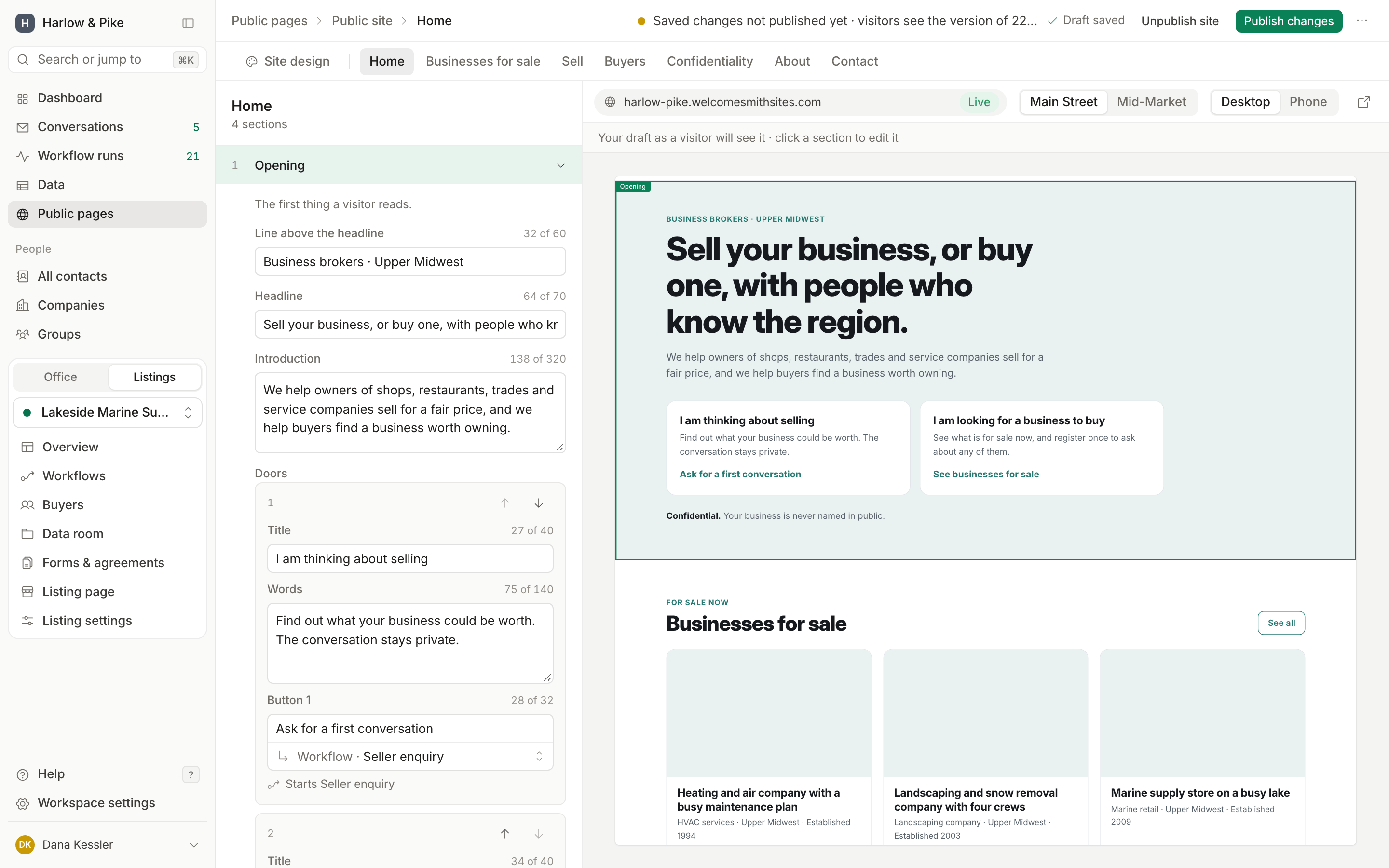
Choose the look in Site design
Site design holds what every page shares.
- Choose Site design at the start of the page strip.
- Under Look, pick a design in Designed for: Main Street or Mid-Market. Each suits a different kind of buyer and seller. Your words and pictures stay when you change it, and the app asks you to confirm.
- In Logo is made for, say whether your logo was made for light or dark backgrounds. The site shows your logo only on that kind of background, and your monogram and name everywhere else.
- Under Palette, set your colours (below).
- Under Header and footer, fill in Name for your listings, which names the Listings page in the menu, and Line in the footer. Depending on the design you also see Name in the header, Line under the name and Button in the header. Monogram takes one or two letters.
Set your colours
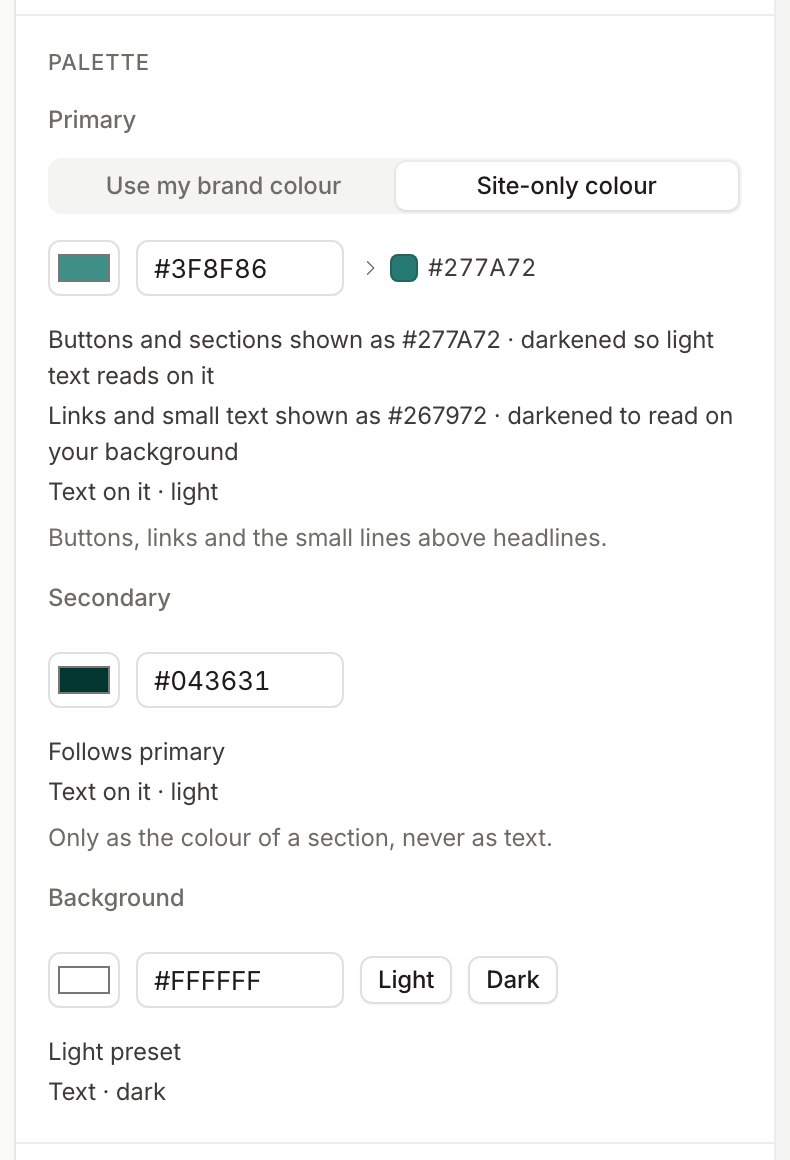
- Primary colours buttons, links and the small lines above headlines. Choose Use my brand colour to follow the colour in Portal branding, or Site-only colour to pick one for the site alone.
- Secondary is used only as the colour of a section, never for text. It follows your primary colour until you pick one, and Follow primary puts it back.
- Background is the page colour. Choose Light or Dark, or pick your own.
When a colour would make text hard to read, the site uses a slightly darker or lighter shade of it, and the palette shows the colour you chose beside the shade the site shows.
A colour is typed as # and six digits or letters, such as #2F6F5E.
Write each page
- Choose a page in the strip.
- Choose a section in the left column to open it. One section is open at a time.
- Change the words. A count beside each field shows how much room is left, and the preview updates as you type.
- Some sections have a Colour row. Pick a swatch from your palette.
Lists such as steps or team members have buttons to move an item up or down, to remove it and to add another, within the limits the section shows.
A section that still uses the words we wrote is marked Uses our starting words. Read those sections first, because they describe your firm, and the first time you publish the app asks you to confirm them. See Publish or unpublish your site.
Tip: You can also choose a section in the preview to open it in the left column.
Switch an optional section off
Some sections, such as Featured listings and The firm on Home, are optional and have a switch in their row. Turn the switch off and the site stops showing that section, while its words are kept for when you turn it back on. A section with a list may need a few items before it can be switched on, and it says how many.
Check the preview
- Desktop and Phone above the preview show the page at either width.
- The address bar shows your site's address, marked Live once the site is published.
- Forms do not load in the preview, so nothing can be sent from it. A note shows where the form will be.
- Open preview in a new tab shows the same draft on its own. Only people on your team can open it.
Try on the other design
- Above the preview, choose the design you are not using, Main Street or Mid-Market.
- Look through the pages. Every page shows in that design, and the fields cannot be changed while you look.
- Choose Use this design to switch, or Back to keep the design you had.
The two designs show different sections. For example, only Mid-Market has a track record and lead pictures, and Main Street has the two doors on Home.
Saving happens on its own
There is no Save button. The editor saves your draft a moment after you stop typing, and the line at the top of the page says where it stands.
- Draft saved means everything you see is saved.
- "Not saved" with a number of things to fix means a field needs attention, such as a required headline left empty. Choose the line to go to the first one.
- "Not saved · changed by someone else" means a colleague saved the same draft while you had it open. Choose Reload to load their version. What you typed since your last save is discarded, so copy anything you want to keep first.
A draft is only what your team sees. Visitors see what you last published.
What is kept elsewhere
The Kept elsewhere group in Site design lists what the site reads from your workspace settings.
- Your logo, brand colour and firm name come from Portal branding.
- The contact details and disclaimer on the Contact page, and the phone number and email address that Call and Email buttons use, come from Listing pages under Workspace settings.
A change there shows on your site without publishing again.
What you cannot change
- The order of the sections. Sections keep their order on every site, although you can move items within a list.
- The pages. You cannot add, remove or rename a page, apart from the name of the Listings page.
- A section that is not optional. Only sections with a switch can be turned off.
- The address. There is no screen in the app for using a domain of your own.
- The logo format. The logo is a PNG or JPEG from Portal branding; an SVG logo is refused.