- Knowledge Center
- Workflows
See where everyone stands in Runs
Read one list of every person going through a workflow, find who each run is waiting on, and open a run for the detail.
On this page
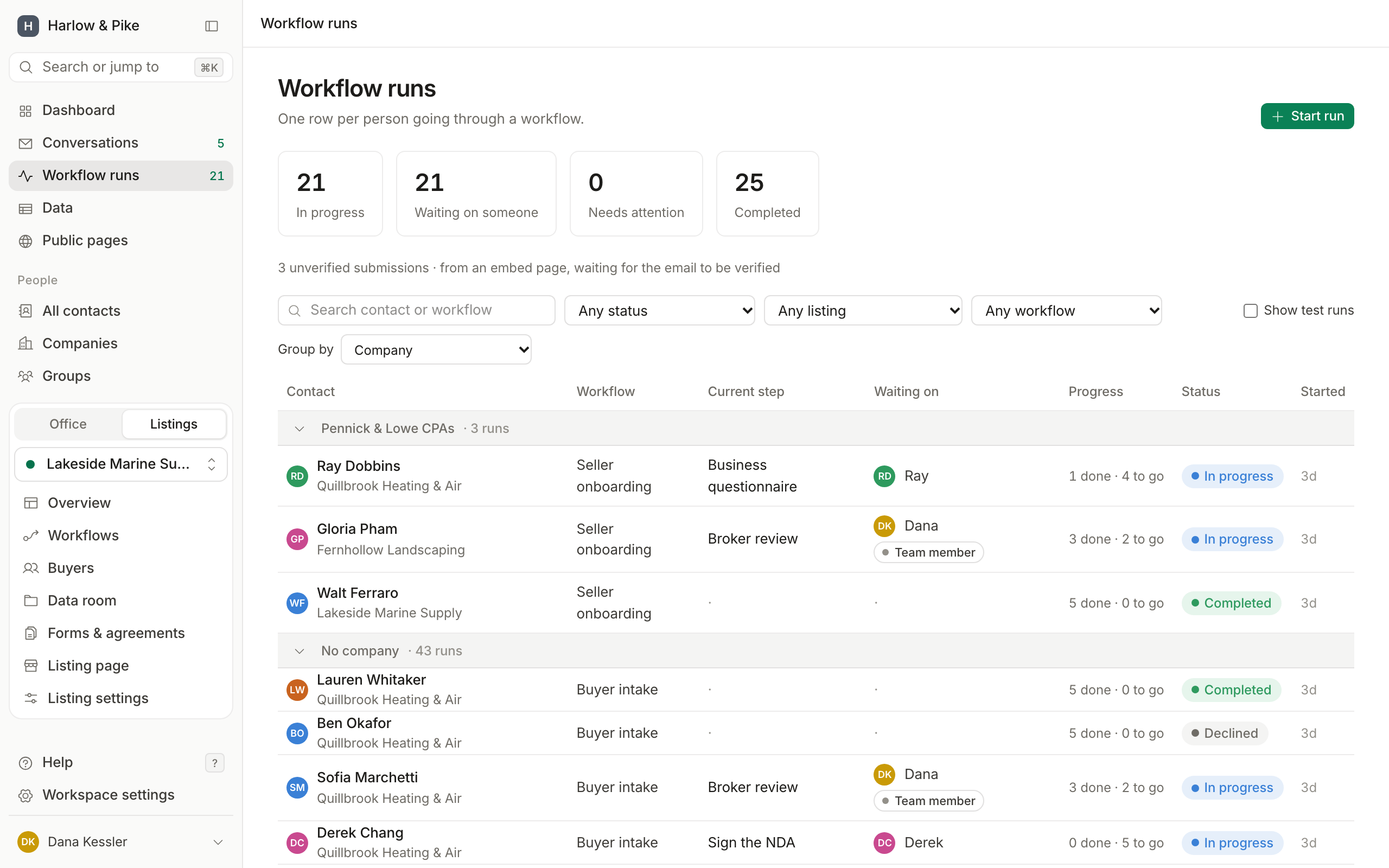
Workflow runs is the one list that answers "where is everyone?" It has one row for each person going through a workflow, and each row shows the step they are on and who the run is waiting on, so you can tell at a glance whether the next move is yours or the buyer's.
Read the list
- Choose Workflow runs in the sidebar.
- Read across a row. Contact is the person the run is about, Workflow is what they are going through, Current step is where they are, and Waiting on is who needs to act next.
- Check Progress for how much is done, Status for how the run stands, and Started for when it began.
- Choose a row to open the run.
The four tiles at the top count your runs by how they stand: In progress, Waiting on someone, Needs attention and Completed. Choose a tile to see only those runs.
Narrow it down
- Type in the search box to find a contact or a workflow by name.
- Use Status to show one kind of run, including Unverified and Canceled.
- Use Workflow to show the runs of one workflow.
- Use Group by to gather the rows by Company, Person or Workflow.
- Turn on Show test runs to include the runs you started with Test run.
- Choose Clear to go back to the full list.
Note: A run marked Unverified came from an Embed page, and the person has not yet entered the code that confirms their email address. No link can be sent to them until they do. Open the run and choose Resend code to send the code again.
Open one run
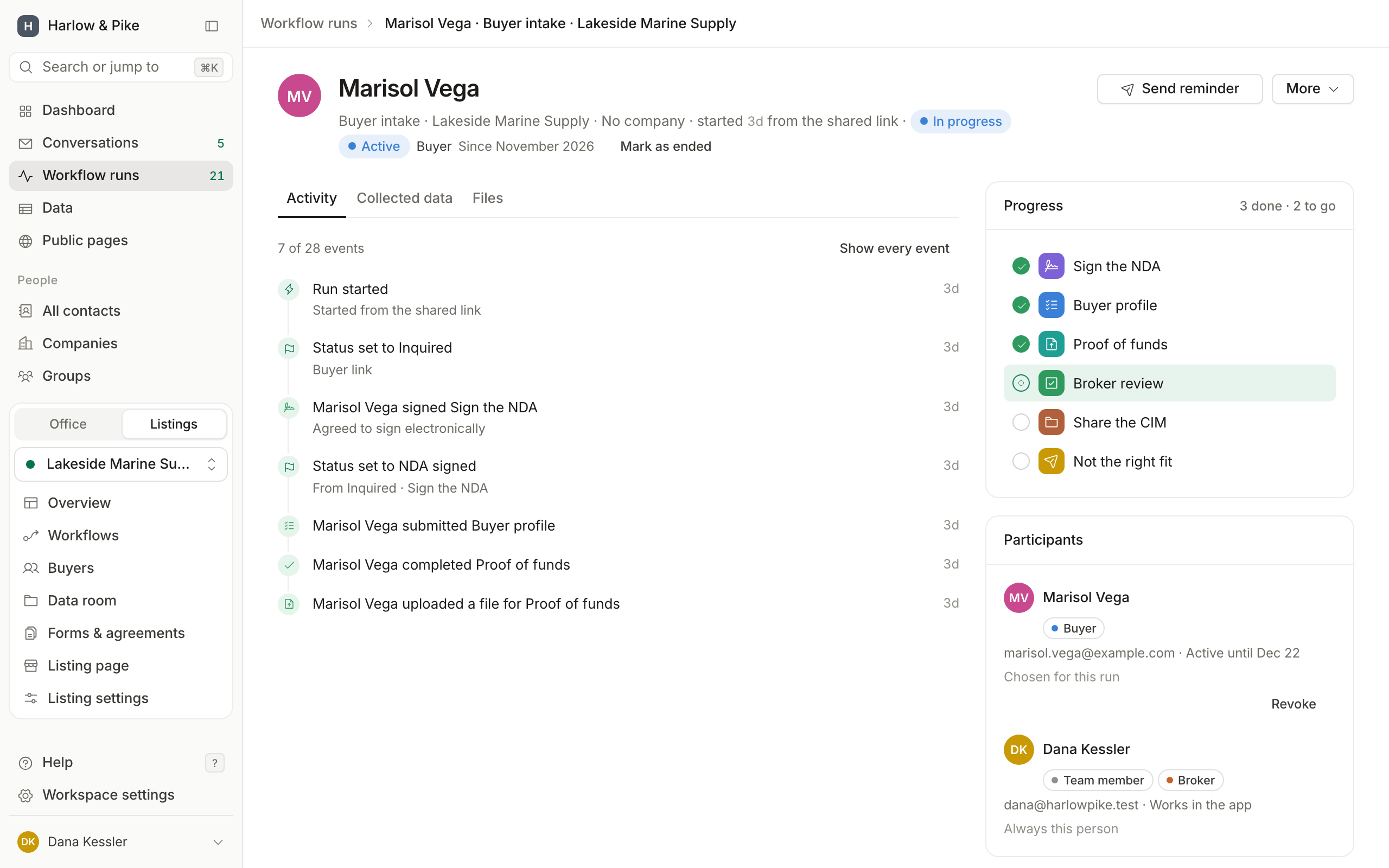
A run's page gathers everything about it.
- Activity is the timeline of what has happened, such as an invitation sent, a form finished or a document signed.
- Collected data shows the answers the person has given.
- Files holds what they uploaded and the signed copies.
- Progress lists the steps, with the current one marked.
- Participants shows who fills each party, and whether their link is active.
Act on a run
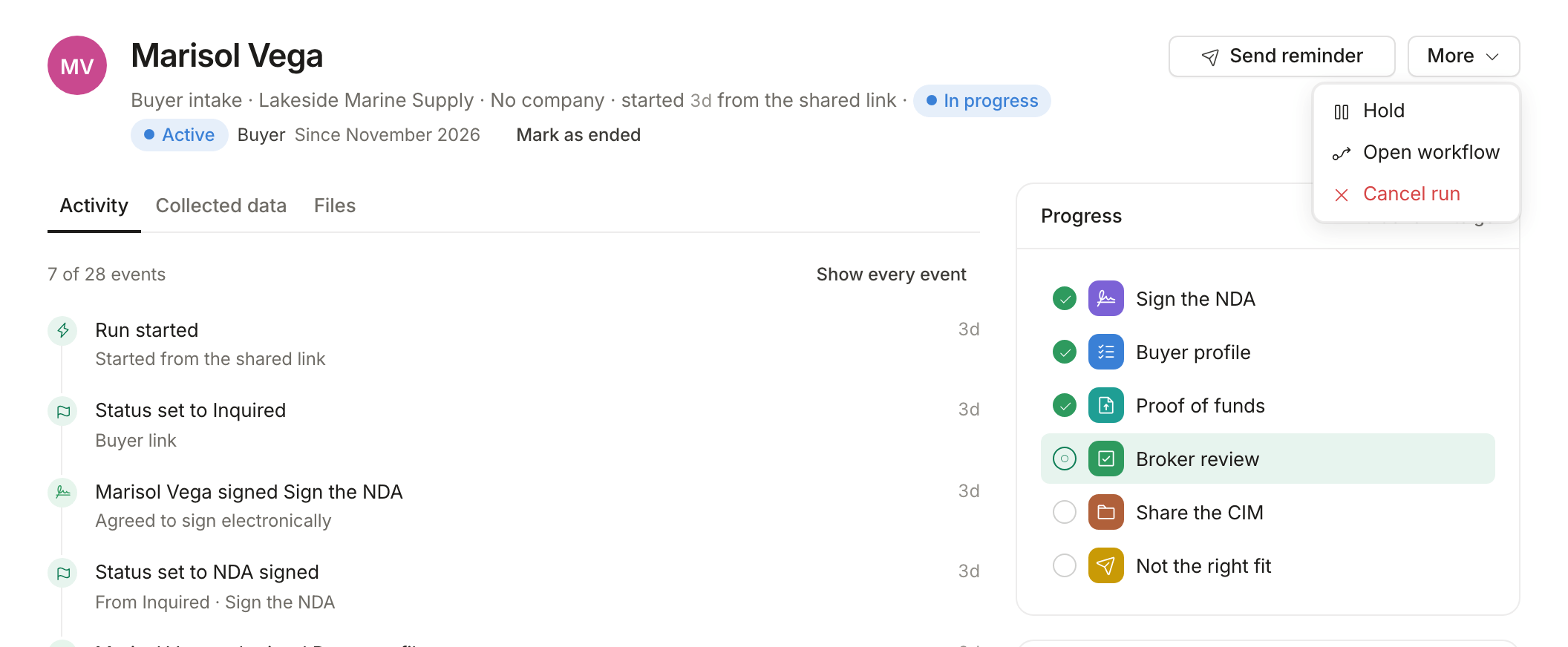
From the top of a run's page you can do four things.
- Choose Send reminder to email everyone who holds an open step.
- Choose Hold to freeze the run. Nothing is sent and nothing can be submitted until you choose Resume.
- Choose Open workflow to see the workflow the run is following.
- Choose Cancel run to stop it. Open steps are closed and the person's links stop working.
On a narrow screen, some of these sit under More.
When a run needs attention
A run shows Needs attention when one of its steps has failed. Open the run, find the failed step under Progress and choose Retry. If the run should not go on, choose Cancel run.
Where else to look
The Dashboard gathers what needs you across all of your listings, and Conversations lists decisions waiting for you under Needs you. Workflow runs remains the full record, with every run in it.