- Knowledge Center
- Workflows
Publish a workflow and start a run
Publish your workflow so it can be used, then start a run for one person and know what they receive.
On this page
A workflow you are building is a draft, and nothing reaches a buyer from a draft. Publishing saves a version of the workflow that runs can use. A run is one person going through that version, from the first step to the last.
Before you start
- The workflow has a trigger and at least one party. See Build a workflow from a form, a signature and a shared file.
- Every form the workflow uses has been published from the form itself, and every sign step has a document chosen.
Try it first
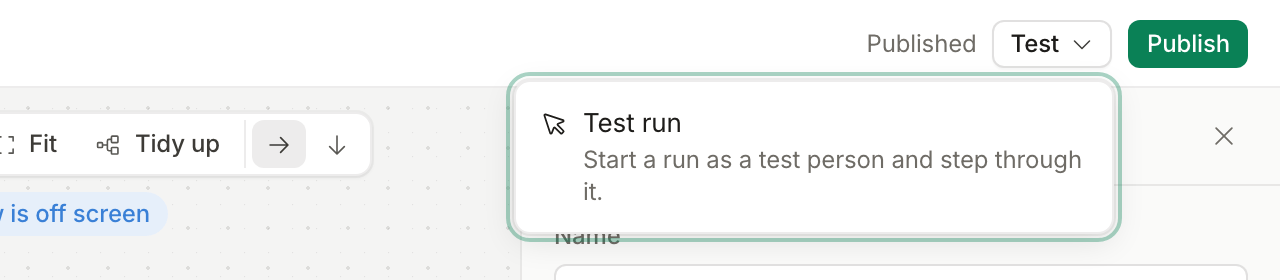
- Open the workflow and choose Test at the top of the builder.
- Choose Test run.
- Step through the workflow as the test person. Emails from a test run go only to you, and nothing is sent to real people.
- Choose Discard test run when you have seen enough.
Publish
- Choose Publish at the top of the builder.
- If the app answers Can't publish yet, read the list of things to fix, correct each one and choose Publish again.
When it succeeds, the app confirms the version number, for example Published version 1. Choose Properties on the canvas bar to see the latest version and when it was published, under History.
Changes you make after publishing stay in the draft until you publish again. Each publish saves a new version, and a run keeps the version it started on.
Start a run by hand
- Choose Workflow runs in the sidebar.
- Choose Start run.
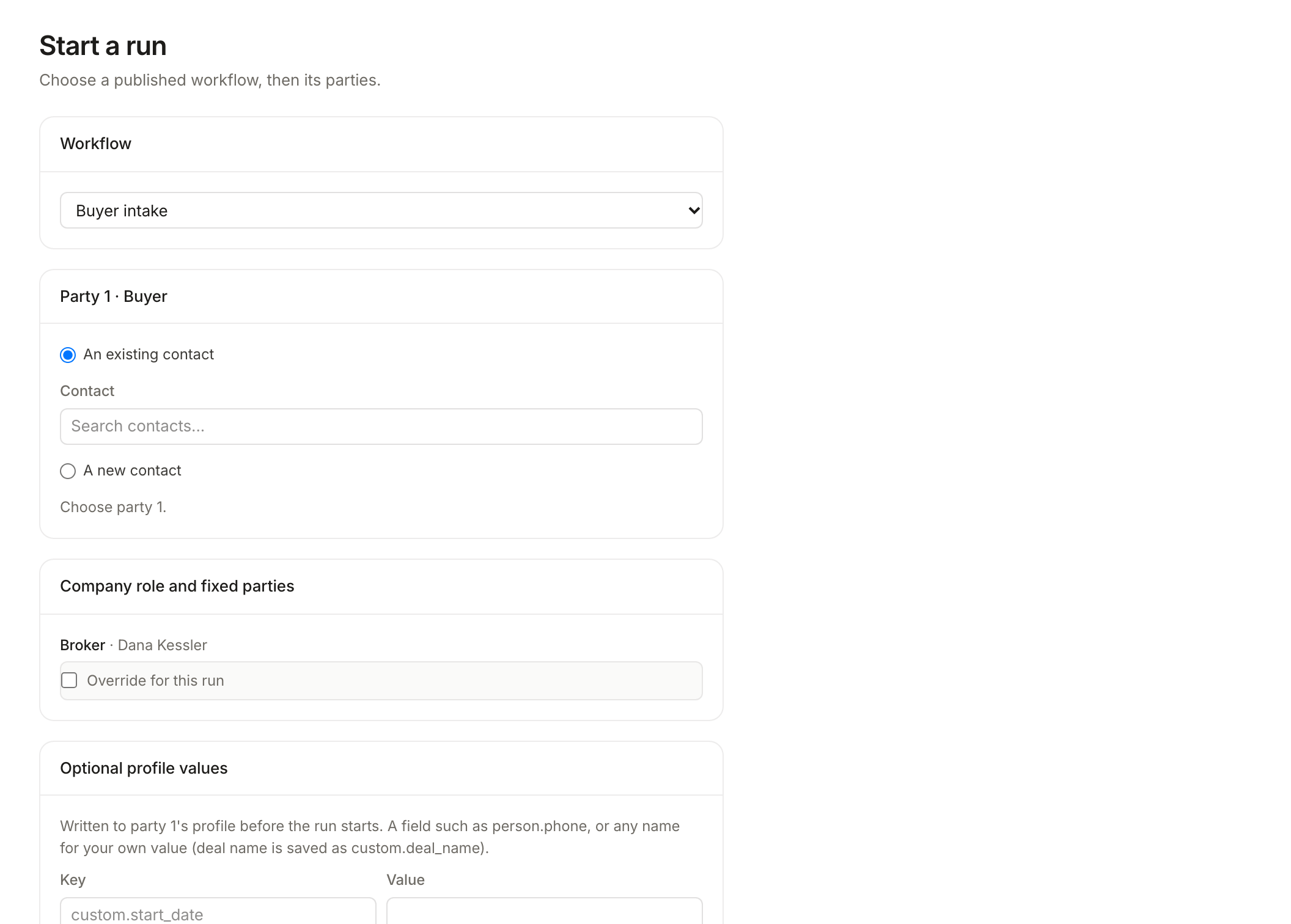
- Under Workflow, choose the published workflow.
- Under Party 1, choose An existing contact and pick the person, or choose A new contact and enter their Name and Email.
- If the workflow has other parties, choose who fills each one.
- Choose Start run.
If the person already has a run of this workflow in progress, the app asks before it starts a second one, because a second run sends new invitations and runs alongside the first.
Other ways a run starts
The workflow's triggers decide how else runs begin. A Shared link or an Embed step starts a run for whoever fills in the page. A Group step starts one when a contact joins a group. An Email received step starts one from an email to your workspace inbox. In the builder, Properties lists them under How runs start.
What your buyer sees
The first party is invited first. They receive an email from your firm with a link, and the link opens their list of steps with your branding. They do not need a login. When a later step belongs to another party, that person is invited when the run reaches their step.
What happens next
The run appears in Workflow runs with its current step and who it is waiting on. See See where everyone stands in Runs.
Note: To pause a published workflow, turn off its switch on the Workflows page. Its runs in progress go on hold and nothing new starts until you turn the switch back on.
Related
- PreviousBuild a workflow from a form, a signature and a shared file
- NextSee where everyone stands in Runs