- Knowledge Center
- Forms and agreements
Send answers to Google Sheets
Connect Google once, then add a step that writes a row to a spreadsheet you choose each time a run reaches it.
On this page
If your team already works from a spreadsheet, the answers people give can arrive there on their own. A Google Sheets step writes one row each time a run reaches it, with the columns you choose, so nobody copies answers across by hand.
Before you start
- Only owners and admins can connect Google. Anyone else sees a note to ask a workspace admin.
- Have a spreadsheet ready in the Google account you will connect, with a sheet for the rows.
- You need a workflow with a form in it, so that there are answers to send.
Connect Google
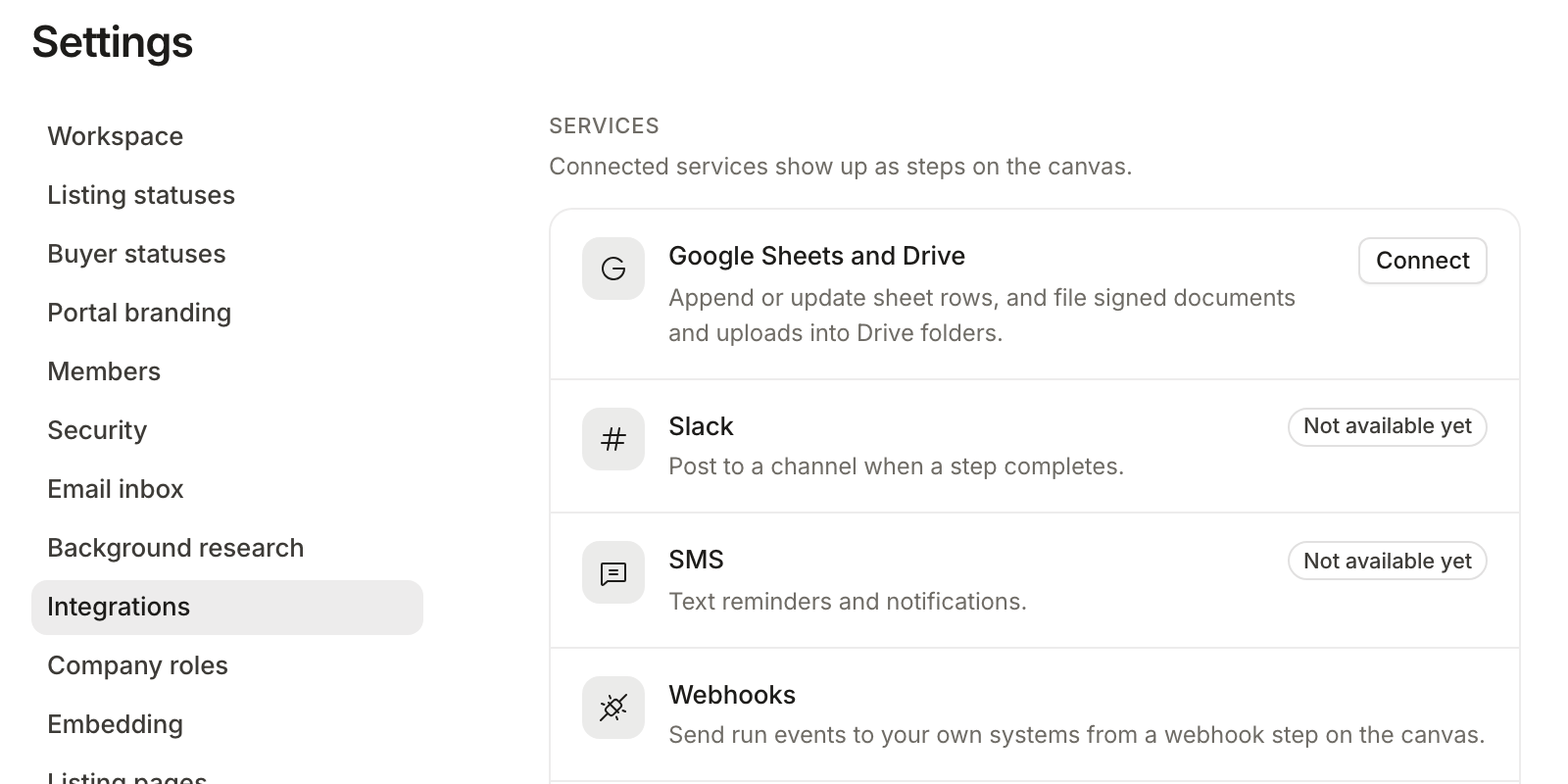
- Choose Workspace settings at the foot of the sidebar, then Integrations.
- On the Google Sheets and Drive card, choose Connect.
- Sign in with the Google account that owns the spreadsheet, and allow access when Google asks.
When you return, the card reads Connected with the account's address beside it.
Note: If the card has no Connect button and says Google Sheets and Drive are not set up, the connection is not available in your workspace yet. Your steps still work, and their rows are kept under Local sheets on the same page.
Add the step
- Open the workflow and select the step the row should follow, usually the form.
- In Add a step, under Actions, choose Google Sheets.
- Under Connection, set Where to write to Google Sheets.
- Under Spreadsheet, choose your spreadsheet, and type the tab's name in Sheet name.
- Set Write mode. Upsert by contact id keeps one row for each person and updates it when the step runs again. Always append adds a new row every time.
Choose the columns
- Under Row, leave Columns come from on Columns I pick.
- Under Mapped columns, choose Add for each column the row should carry.
- For each one, type the column's header in its header field. In its profile key field, pick the question whose answer belongs there, or type a key.
- Publish the workflow.
Careful: Answers marked sensitive, such as a Social Security number, are written masked unless you turn on Write sensitive values in clear. Think about who can open the spreadsheet before you turn it on.
What happens next
Each time a run reaches the step, a row is written and the run moves on. If a step on a run fails, the run shows Needs attention in Workflow runs. Open the run and choose Retry on the failed step once you have put the cause right.
If you do not use Google
Set Where to write to Local table (Google not connected). The rows are kept in your workspace, under Local sheets on the Integrations page, and Export CSV there gives you a file that opens in any spreadsheet program.
Send signed documents to Google Drive
The same connection can file signed copies. Select a Sign step and, under Google Drive, fill in Folder (when connected) with the Drive folder the signed copies should go to.