- Knowledge Center
- What your people see
Publish or unpublish your site
Put your Public site live at its own address, publish later changes, and take it down again if you need to.
On this page
Nothing you change in the Public site editor reaches visitors until you publish. One publish puts the whole site live: every page, the design, the colours and the buttons. Until your first publish, your site's address shows nothing.
Before you start
- Only owners and admins can publish or unpublish.
- The line at the top of the editor reads Draft saved. Publish waits until everything is saved.
- No things to fix are left. A warning at the top, such as "2 things to fix" or "1 button needs a new destination", takes you to the first one when you choose it. See Point your site's buttons and forms at a workflow.
Publish your site
- Choose Publish at the top right of the editor.
- If the app asks about our starting words, read the sections it names (below).
- Wait for the notice "Published."
If your site has pictures, the notice may say they are still being copied. They appear on your site shortly afterwards.
Your site is then live at your workspace address followed by .welcomesmithsites.com, for example harlow-pike.welcomesmithsites.com. The menu behind the three dots beside Publish has View live site and Copy address.
The starting words question
Our starting words describe a typical firm. Before they go out under your name, the app asks you to confirm them once for each design.
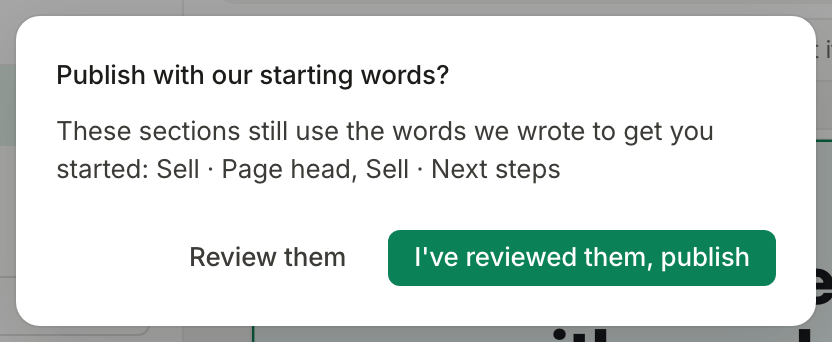
The dialog is titled "Publish with our starting words?" and lists each section that still uses them.
- Review them opens the first section listed, so you can change the words.
- I've reviewed them, publish confirms them and publishes.
A section you have rewritten is not asked about. In the editor, a section still in our words carries the line Uses our starting words. If you change the design, the next publish asks about that design's sections.
Publish later changes
After the first publish, the button reads Publish changes. Your edits stay in the draft until you choose it, and the line at the top says what visitors see:
- "Live · matches what you published on" a date and time, when the site matches your draft.
- "Saved changes not published yet · visitors see the version of" a date, when your draft has changes.
The same line shows in the Public site row on Public pages.
Some things update on your site without publishing, because the site reads them from your workspace each time:
- your logo, brand colour and firm name from Portal branding;
- the contact details and disclaimer from Listing pages;
- your listings;
- whether a workflow a button starts is live.
How listings reach your site
Your site's Listings page and the featured listings on Home show every listing whose page is published and in your listing directory, newest first. A listing outside the directory still opens at its own address on your site, but it is not listed. The listing page editor says whether a page is in the directory and how to add it. See Publish a listing page.
While your site is live, the old Welcomesmith address of a listing, and of your listing directory, sends visitors on to the same page on your site, so links you have already shared keep working.
Unpublish your site
- Choose Unpublish site at the top of the editor.
- Read the dialog, "Unpublish your site?", and choose Unpublish site to confirm.
Your address stops answering until you publish again. Your listings and your listing directory go back to their Welcomesmith addresses, and your drafts are kept, so publishing again brings the site back as it was.
Careful: Visitors who open your site's address while it is unpublished find nothing there. Tell anyone who links to it, or update those links to your listing directory.