- Knowledge Center
- Forms and agreements
Put a form on your own website with Embedding
Allow your site, copy one piece of code from the workflow, and paste it where the form should appear.
On this page
Your website already brings buyers to you, so the form can live there. An Embed step gives you a short piece of code. You paste it into a page on your site, the form appears in that spot, and each person who fills it in starts a run in your workspace.
Before you start
- You need a workflow that starts with an Embed step. The Website NDA, New client intake and Seller intake templates all do, and Take an inquiry through to a signed NDA builds one from scratch.
- You need to be able to edit a page on your website, or to send the code to the person who does.
- Only owners and admins can change which websites are allowed.
Allow your website
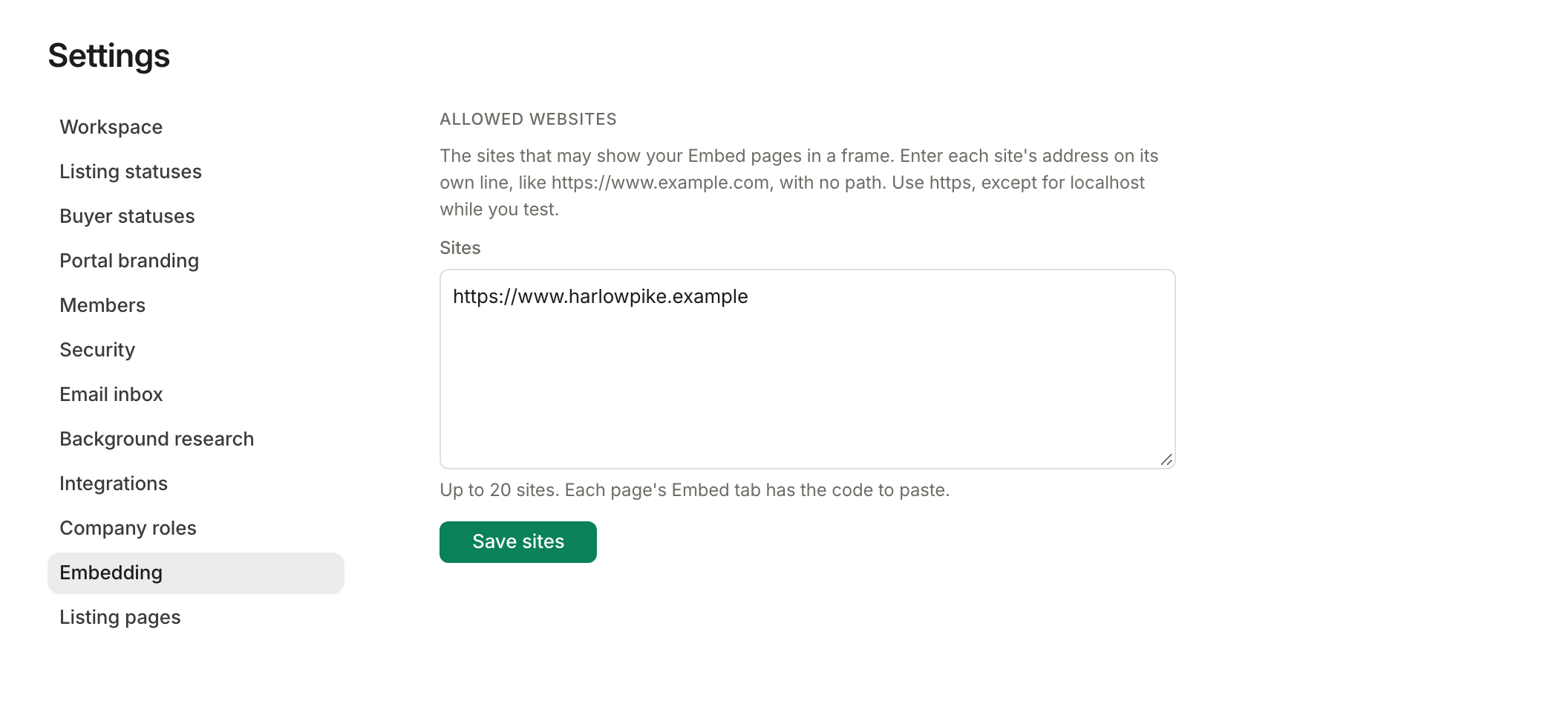
- Choose Workspace settings at the foot of the sidebar, then Embedding.
- Under Allowed websites, type your site's address in Sites, for example https://www.harlowpike.example. Put each site on its own line, use https, and leave off any path.
- Choose Save sites.
Note: A site that is not on this list cannot show the form in place. A visitor there sees a link to open the form in a new tab instead. Your firm's own Public site, if you have one, needs no entry here.
Set up the page
- Open the workflow and select its Embed step.
- On the Page tab, write a Heading and an Intro. They are shown at the top of the form wherever it is embedded.
- Under What people see when they finish, write a short closing message.
- Leave Confirm the visitor's email with a code on. With it on, a visitor finishes the first step and then enters a six-digit code that is emailed to them, which proves the address is theirs.
Careful: Turn the email code off only for a simple first-contact form. People who skip the code are marked unconfirmed, and steps that sign, share files, send to them or set a status will not run for them.
Publish, then copy the code
- Choose Publish. The code works only once the workflow is published.
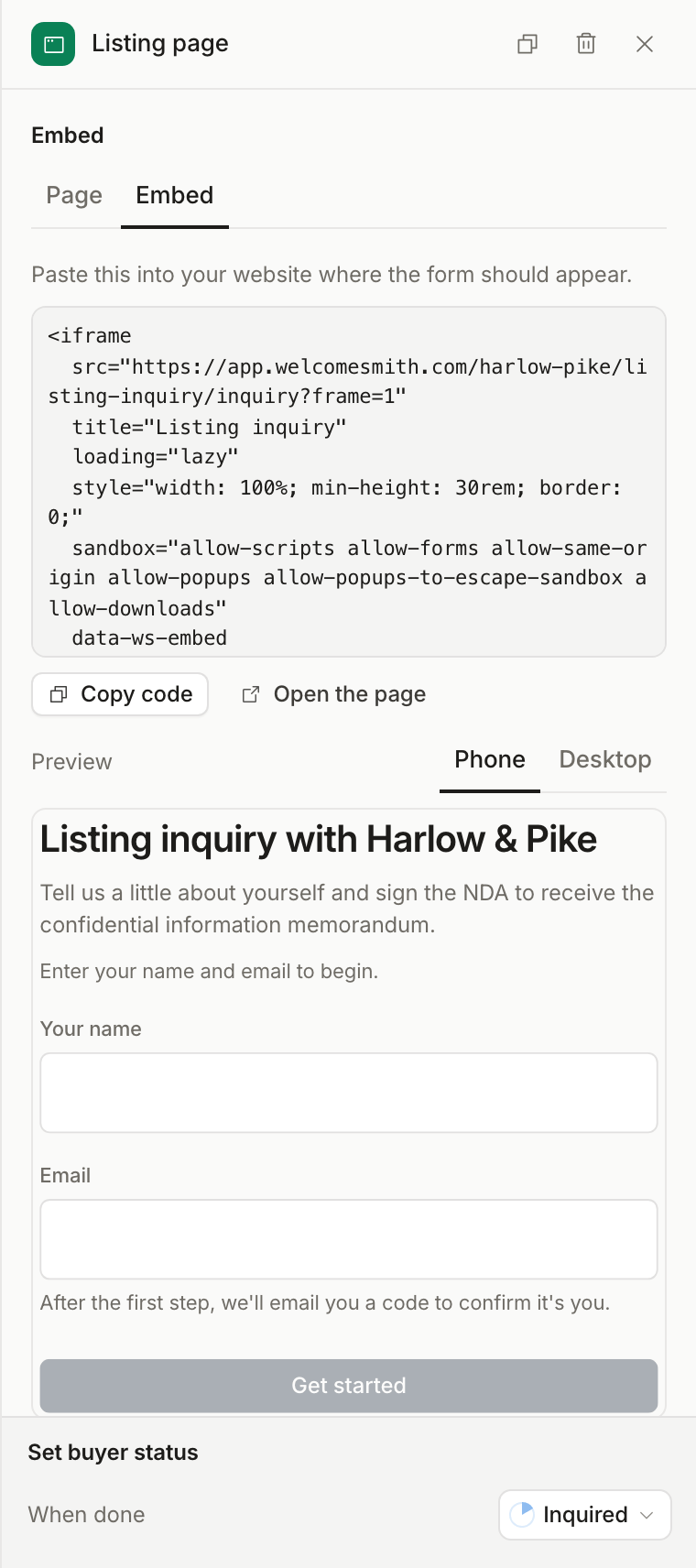
- Select the Embed step again and open its Embed tab.
- Check the Preview at Phone and Desktop widths.
- Choose Copy code.
Paste it into your site
- Open the page on your website in your site's editor.
- Add a block that accepts HTML or embed code where the form should appear.
- Paste the code and save the page.
The form sizes itself to fit, so you do not need to set a height.
What your visitor sees
The visitor sees your heading and intro, enters their name and email, and completes the first step on your page. They are then asked for the code from their email. Once they enter it, they carry on to the next step, or they see your closing message if nothing else is left for them.
What happens next
Each visitor appears in Workflow runs as soon as they begin. Until they enter their code, the run is marked Unverified. If you would like to hear about a submission before the code is entered, turn on Tell us when someone submits, before they confirm their email on the step's Page tab.
If your firm has Public site and its buttons or forms start this workflow, the Embed tab says so above the code, for example "Used on your public site: Home, header". Pausing or archiving such a workflow asks you first, because while it is not live those buttons go to your site's Contact page. See Point your site's buttons and forms at a workflow.
Tip: Open the page on the Embed tab opens the same form at its own address. You can send that link to someone directly when you do not want to send them to your website.