- Knowledge Center
- Workflows
Take an inquiry through to a signed NDA
Build one workflow that asks a buyer's questions, has them sign your NDA and tells you when it is signed.
On this page
This workflow turns an interested stranger into a buyer with a signed NDA, without anyone on your team sending an email. The buyer answers your questions on a page, confirms their email address, signs the NDA, and you hear about it when it is done.
The examples use the sample firm Harlow & Pike and its listing, Lakeside Marine Supply.
Before you start
- Your NDA is uploaded as an agreement with its fields placed, and with one signer slot if only the buyer signs. See Add an agreement to Forms & agreements.
- You have the listing open, because a workflow belongs to the listing it is made in.
Create the workflow and its parties
- Choose Workflows in the sidebar, then New workflow.
- Choose Blank workflow.
- In the pane on the right, find Parties and choose Add.
- Name the first party Buyer, and leave Who fills this seat on Individual contact. The first party is the person each run is about.
- Choose Add again and name the second party Team. Set Who fills this seat to Fixed person, and pick yourself or a colleague.
Add the steps in order
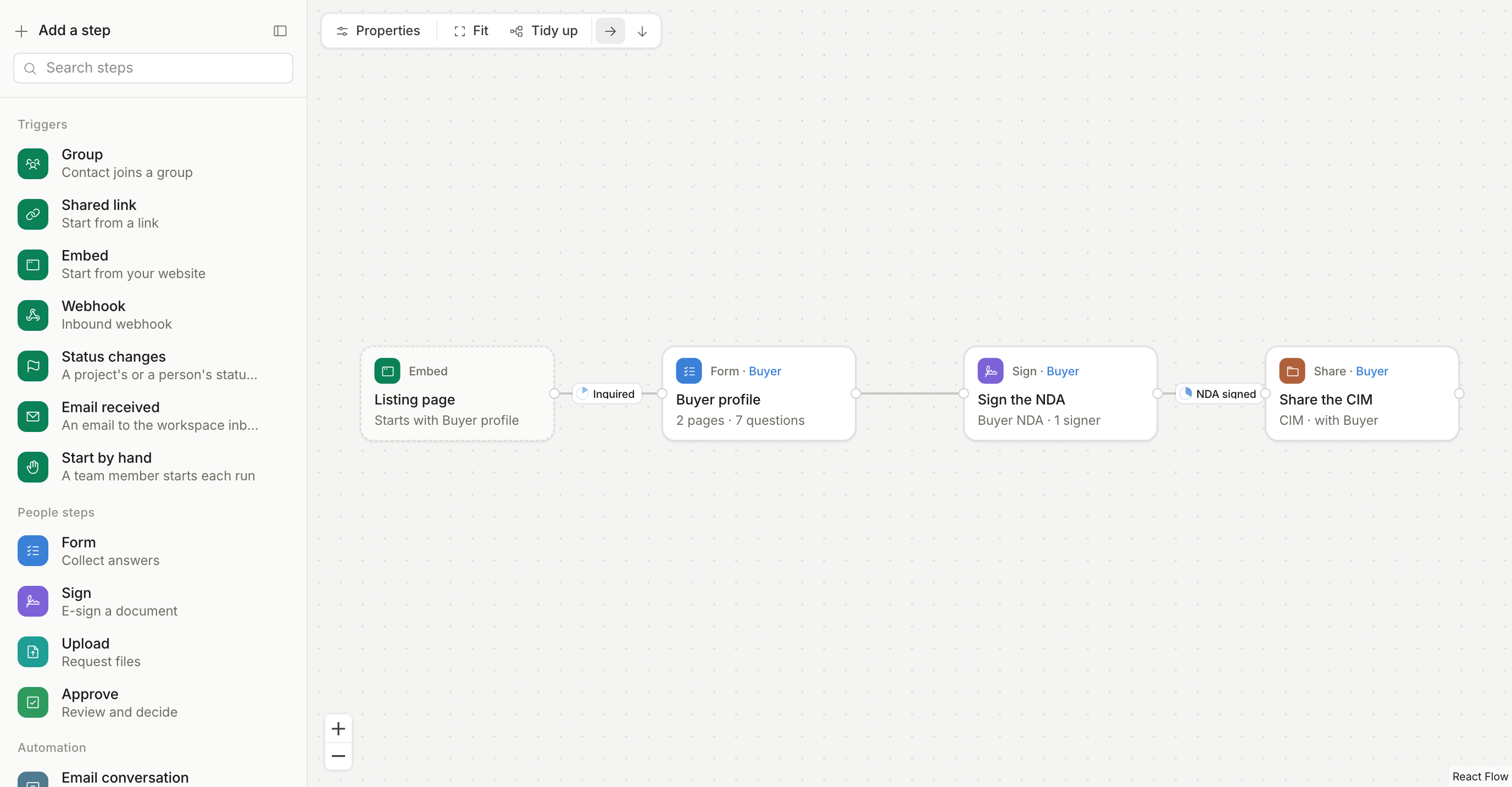
Each step you add is connected after the step that is selected, so add them in the order the buyer meets them.
- In Add a step, choose Embed. This is the page the buyer starts on.
- Choose Form. In the pane, choose New form, then Open form, and add your questions, such as the buyer's phone number and available funds. Choose Publish form when the questions are ready, then Back to workflow.
- Choose Sign. Under Document, pick your NDA in Choose a document. Under Signers, check that the signer is mapped to Buyer.
- Choose Notify. Under Recipients, tick Team, then write the Subject and Message you want to receive.
For the Form and Sign steps, check that Assigned to reads Buyer.
Tip: If you have no questions to ask first, start from the Website NDA template in the New workflow dialog. It puts the NDA itself on the page, so the buyer reads and signs in one visit.
Try it, then publish
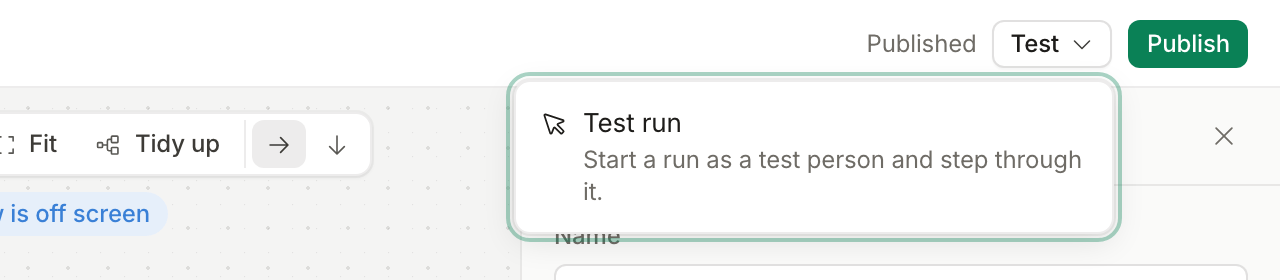
- Choose Test, then Test run, and step through the workflow as a test person. Emails from a test run go only to you.
- Choose Publish. If anything is missing, the app lists what to fix before it will publish.
Put it in front of buyers
Select the Embed step and open its Embed tab. Open the page shows the live page, and Copy code gives you the code for your own website. You can also show the form on the listing's public page by choosing this workflow as the page's Call to action.
What your buyer sees
The buyer enters their name and email and answers your questions on the page. They are then emailed a six-digit code, and entering it confirms the address is theirs. From there they go straight on to the NDA, sign it, and receive the completed copy by email. Your team receives the message from the Notify step.
What happens next
The run appears in Workflow runs from the moment the buyer starts. Until they enter their code it is marked Unverified. Once the NDA is signed, the signed copy is on the run under Files.