- Knowledge Center
- Projects and pages
Share files in the Data room and see who opened them
Put the CIM and financials in a folder, give a buyer access that ends on a date, and read the buyer activity.
On this page
A folder a buyer can open from a link until the date you choose, and a record of which files they opened and when.
Before you start
- A listing in your workspace. The examples use Lakeside Marine Supply from the sample firm, Harlow & Pike.
- The files you want to share, such as the CIM and three years of financials.
- The buyer saved as a contact, so there is someone to give access to.
Make a folder
Open your listing and choose Data room in the sidebar, then New folder. Name the folder for what is inside it, because the buyer sees that name. A new folder starts as Private, which means only your team can see it.
Add your files
Select the folder and drag your files into it. Each file shows its kind and size once it has arrived, and the order you see is the order the buyer gets.
You can also add a file someone sent you. Open the Received tab at the top of the Data room to see what each person has sent on this listing's workflows. A file a person uploaded has Add to Data room beside it. Choose it, pick a folder and choose Save. A copy goes into that folder, and the file the person sent stays where it was.
The copy is held, so nobody outside your team sees it until you decide they should. Once it is in the folder, its row on Received shows the folder's name and Held. To share it, open the folder, open the menu on the file's row and choose Make shareable.
Note: Only a file a person uploaded can be added. Signed agreements, form answers and files sent as part of a form cannot. A row that says
No Data room folders yetneeds a folder first, so make one above and come back.
Give a buyer access until a date
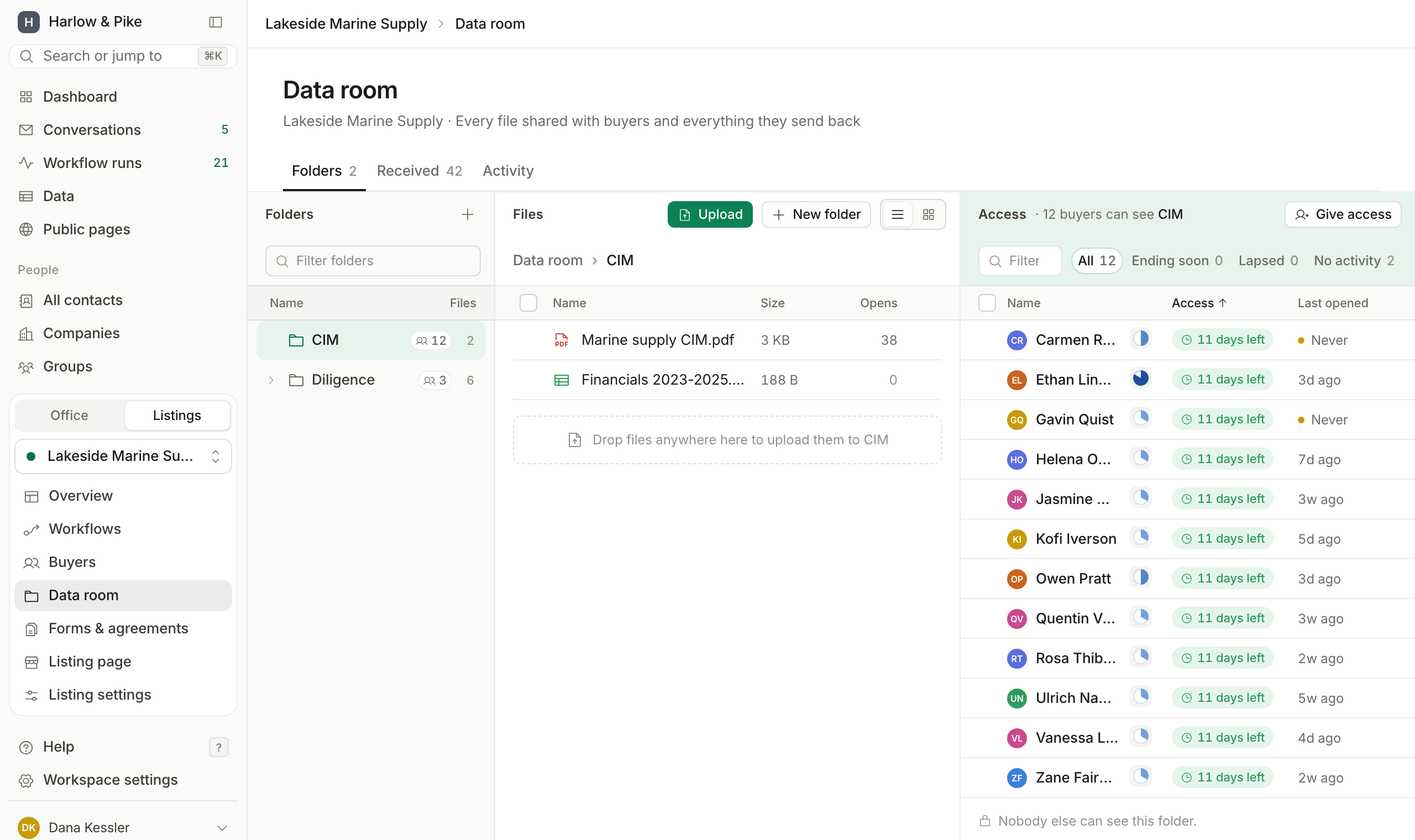
With the folder selected, choose Give access. Pick the person, set Access until to the last day they should be able to open the folder, and leave Email them a link on. They open the folder from that link, and they do not need an account.
Note: Access ends on its own at the end of that day, so there is nothing to remember and nobody to chase.
See who opened what
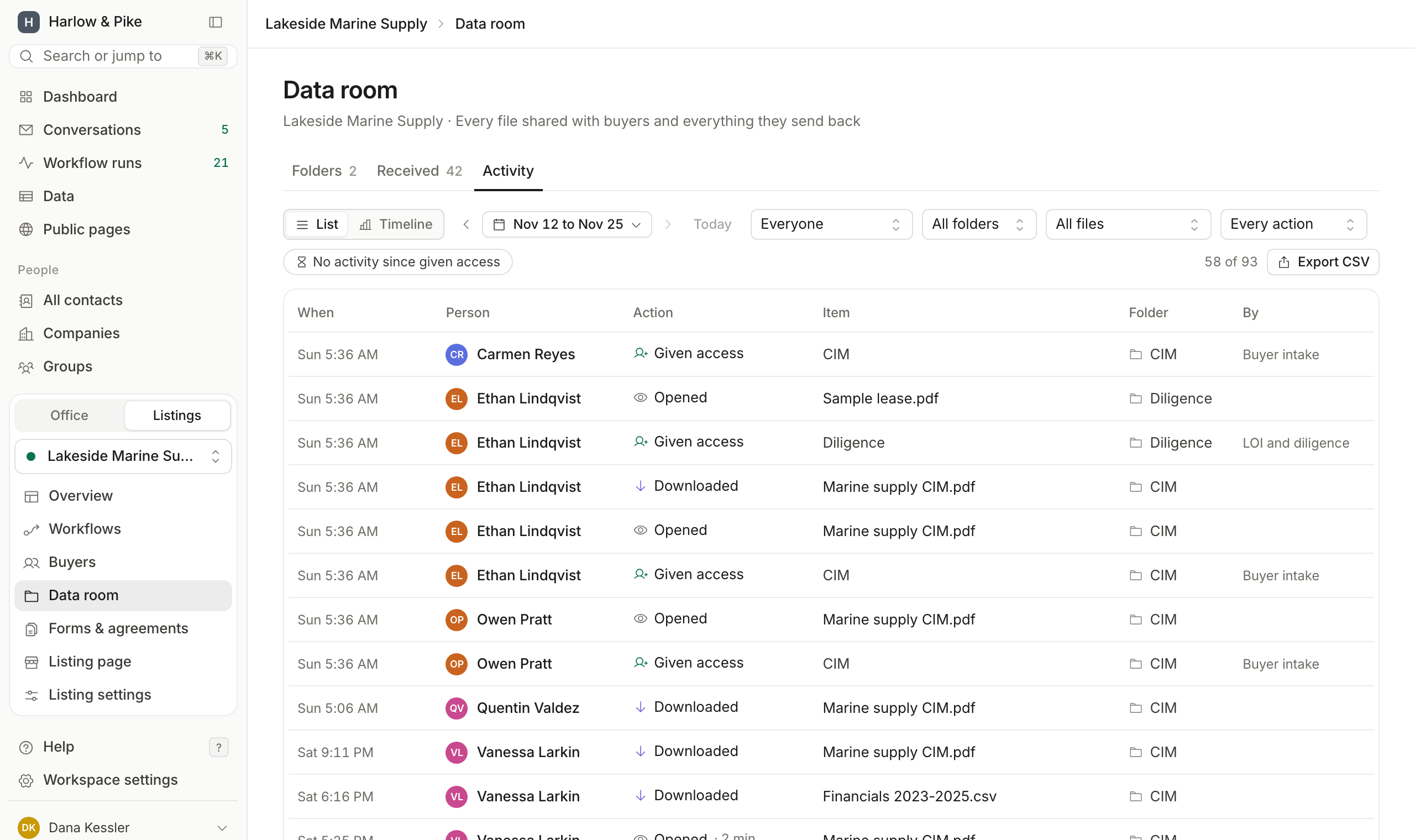
Open the Activity tab at the top of the Data room. Every row is one thing one person did, with the file and the time, so you can tell a buyer who read the financials twice from one who never opened the link. Export CSV gives the seller the same list in a file.
End access early, or give it again
In the folder's Access list, open the menu on a person's row and choose End access when a buyer steps away before their date. If they come back, Give access again on the same menu opens the folder to them again for your workspace's usual length of access. It sends no email, so let them know it is open.
Careful: Ending access closes the folder from that moment. It cannot take back a file someone has already saved to their own computer.
What this does not do yet
The Data room does not put a buyer's name across each page of a file. The nearest way through is to keep the most sensitive files in their own folder and give access to it only after the NDA is signed.