- Knowledge Center
- Start here
Work beside the tools you already have
Keep your website, your email and your spreadsheets, and connect each one to your workspace.
On this page
You do not have to replace what already works for your firm. Your website can keep taking inquiries, your email address can stay the one buyers know, and your spreadsheets can keep being the place your team looks. This article shows where each of those connects, and links to the article with the full steps.
Keep your own website
A workflow that starts with an Embed step gives you a short piece of code. You paste it into a page on the site you already have, and the form appears there, sized to fit. A visitor fills it in without leaving your site, and a run starts for them in your workspace.
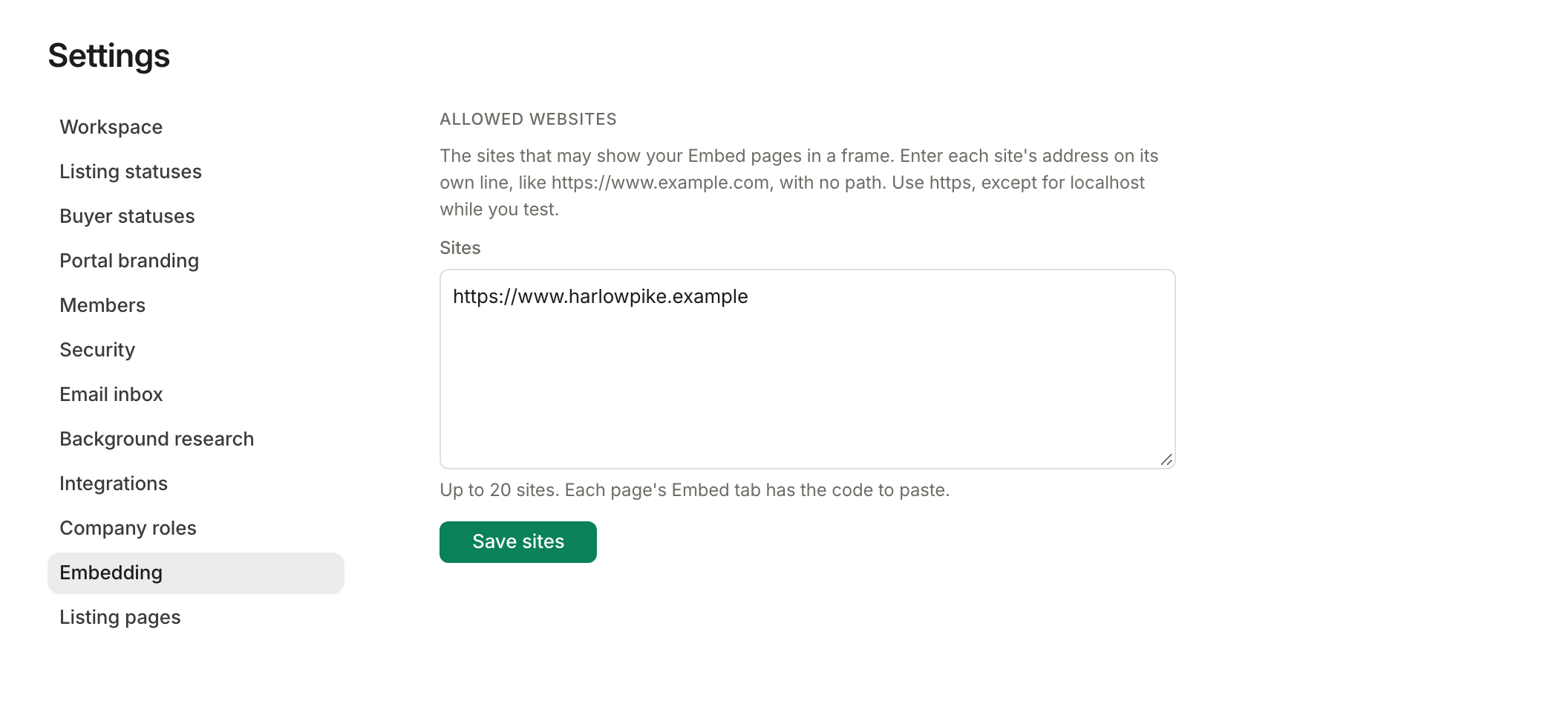
- Choose Workspace settings, then Embedding.
- Under Allowed websites, enter your site's address in Sites and choose Save sites.
- Open the workflow, select its Embed step, and copy the code from the step's Embed tab.
The full steps are in Put a form on your own website with Embedding.
If you would like a page for one listing without touching your website, you can publish one from the listing itself. Your published listings also gather on one page, your listing directory, which anyone with its address can open, so a single link from your website can show them all. Public pages in the sidebar shows the directory's address with Copy address. See Publish a listing page.
Keep your own email
Your workspace has its own email inbox, with an address you can send or forward mail to. Mail that arrives there is matched to a workflow that starts with an Email received step, so an inquiry that reaches your usual mailbox can still start a run.
- Choose Workspace settings, then Email inbox.
- Turn on the Email inbox switch.
- Choose Copy beside the address, and forward the emails you want handled to it.
Two more settings keep replies coming back to you. Reply-to address, under Portal branding, is where replies to your workspace's emails go. Hands off to, under Email inbox, is the person who is copied in when the assistant cannot answer a question, and that person answers from their own email. It is a menu of your team, with Another email address for someone outside it. See What the assistant answers in Conversations and when it hands off.
Send answers to a sheet
A Google Sheets step adds a row to a spreadsheet you choose each time a run reaches it, so the answers people give land where your team already works.
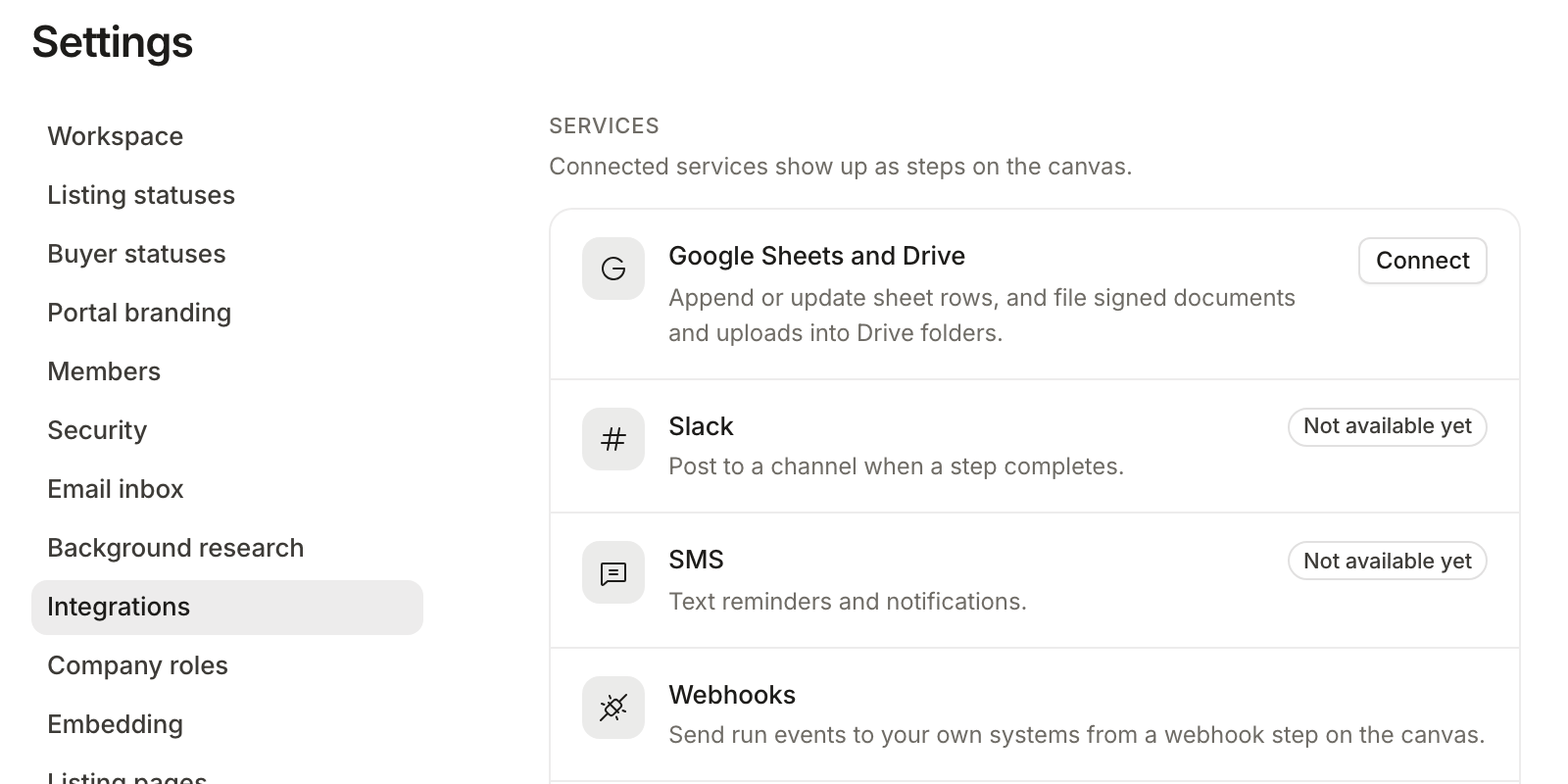
- Choose Workspace settings, then Integrations.
- On the Google Sheets and Drive card, choose Connect and sign in with the Google account that owns the spreadsheet.
- Add a Google Sheets step to your workflow and choose the spreadsheet.
The same connection lets a Sign step file signed documents into a Google Drive folder. The full steps are in Send answers to Google Sheets.
Note: Until Google is connected, a Google Sheets step saves its rows to Local sheets on the Integrations page, where Export CSV gives you the same rows as a file.
Send events to your own systems
If your firm has its own software, a Webhook step can send what happens on a run to an address you choose. The Webhooks card on the Integrations page describes it.
What this doesn't do yet
The Integrations page lists Slack and SMS as Not available yet. Messages from a Notify step go by email today.