- Knowledge Center
- Projects and pages
Publish a listing page
Write a public page for one listing, check it for identifying details, and publish it with a form buyers can fill in.
On this page
A listing page is a public page for one listing, at an address you can send to anyone. It presents the opportunity without naming the business, and it can carry a form so that an interested buyer can ask for more on the spot.
Before you start
- You need a listing. See Create your first listing.
- The sidebar item is named with your workspace's word for a project, so it reads Listing page when that word is Listing.
- If you want an inquiry form on the page, you need a workflow in this listing that starts with an Embed step.
Write the page
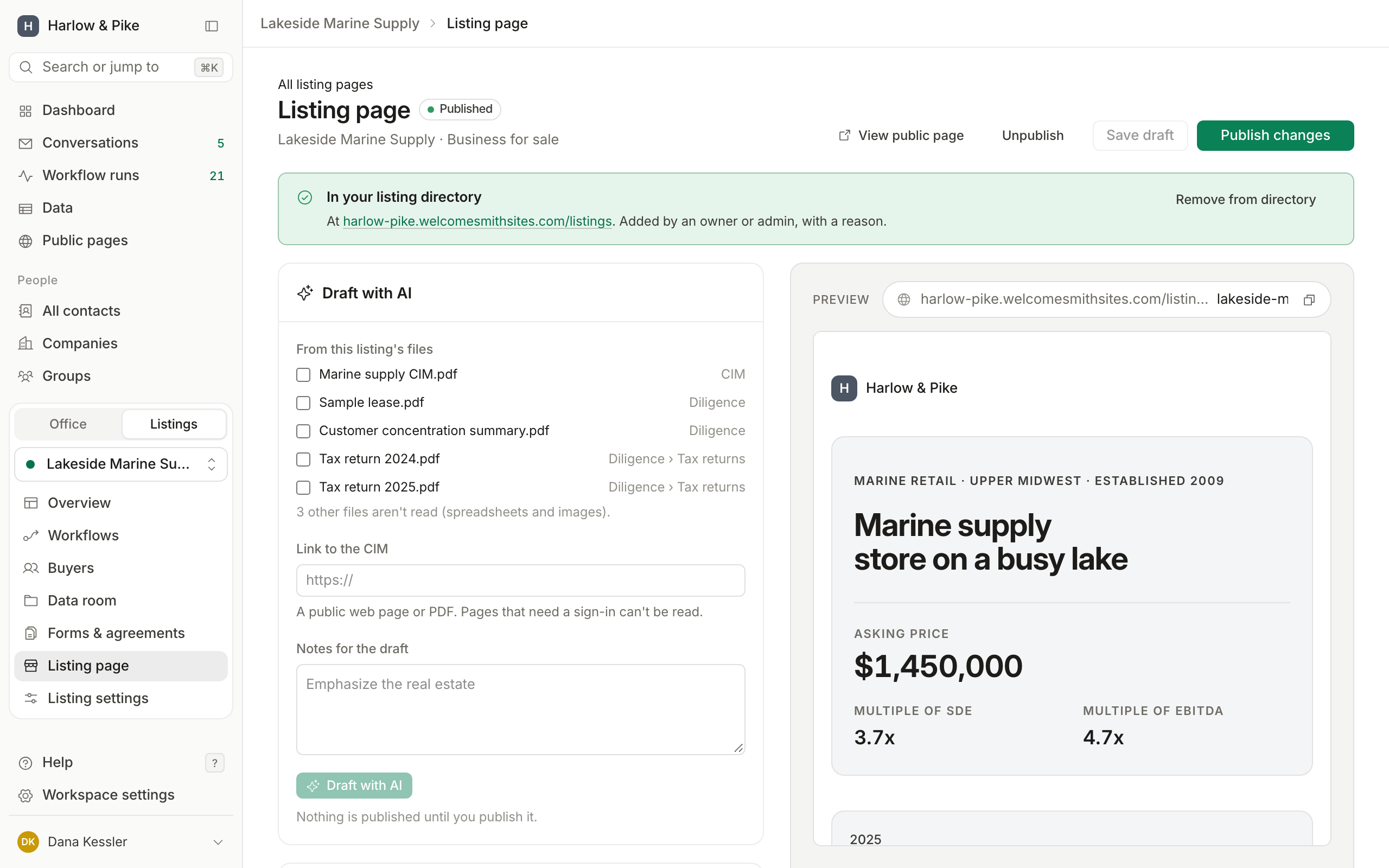
- Open the listing and choose Listing page in the sidebar. The page starts as a Draft. You can also choose Public pages in the sidebar, which lists every listing's page, and choose the listing there. A link above the editor's title takes you back to that list.
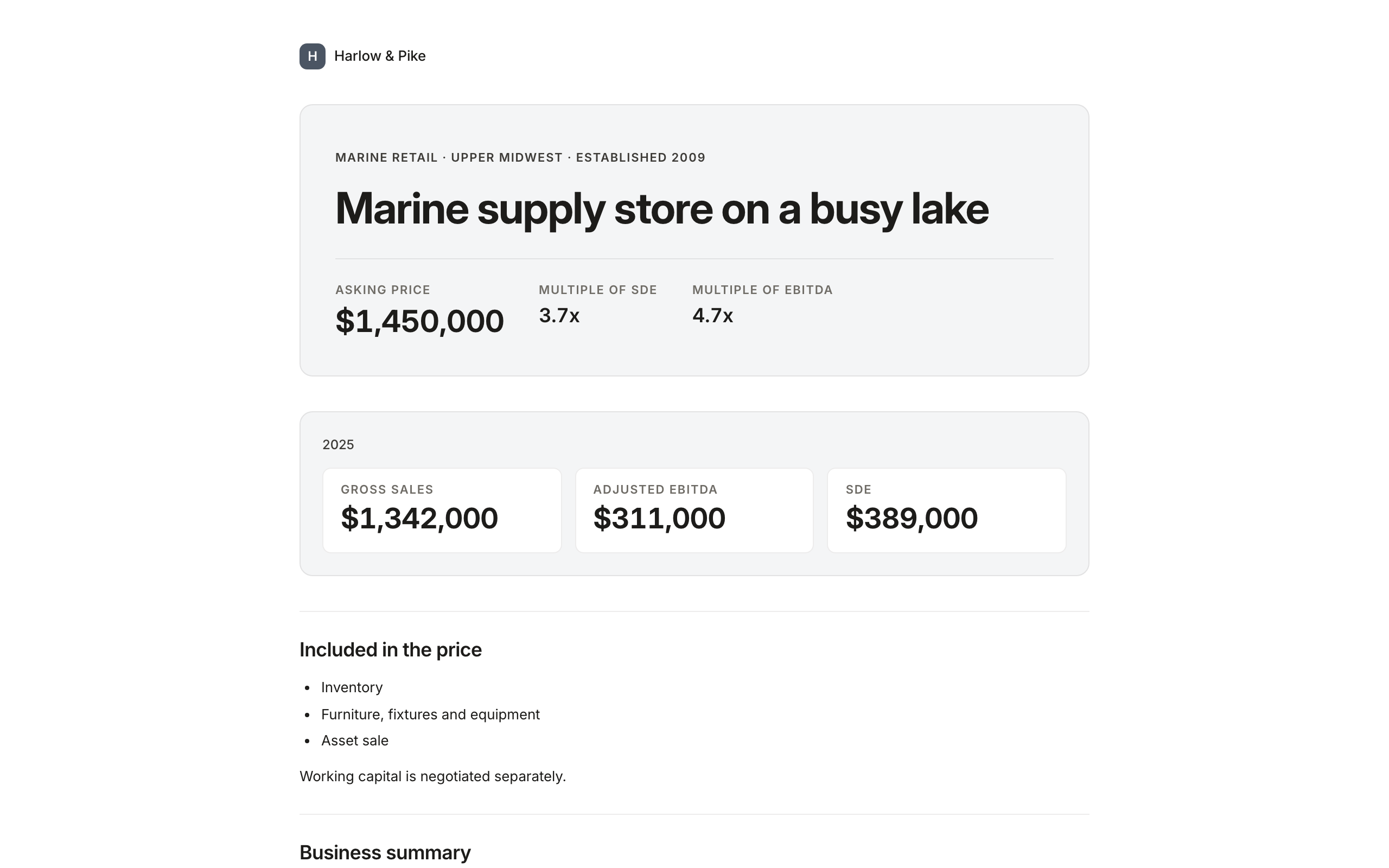
- Under At a glance, fill in Headline, Industry, Region and Established. Keep the region broad, such as a state or a part of the country, so that the business stays confidential.
- Under Financials, enter the Period the figures cover and the figures themselves. Choose Add a figure for each extra line.
- Under Price, enter the Asking price and tick what is Included in the price.
- Under Next steps, say what a buyer should do next. This text is shown above the call to action.
- Under Sections, write the body of the page. Choose Add a section for each new heading.
- Choose Save draft.
The Preview beside the editor shows the page as a buyer will see it, with your branding.
Tip: Draft with AI can write a first draft from the CIM in this listing's files, or from a link to it. Review every figure against the CIM afterwards. Nothing is published until you publish it.
Add an image and an inquiry form
- Under Page, pick a Hero image from the images in this listing's Data room.
- Under Call to action, pick the workflow that should run on the page. Only workflows in this listing that have an Embed step are offered.
- Choose Save draft.
With a call to action chosen, the workflow's form appears on the page under your next steps. With none, the next steps are left out.
Check it for identifying details
- Find Confidentiality check in the editor and choose Check now.
- For each detail the check flags, choose Apply change or Ignore.
- Choose Save draft, then Check again to confirm nothing is left.
The check looks for names, places and other details that could identify the business. Read the page once as a stranger would as well.
Publish and share
- Look at the Public address above the preview, and change the last part if you would like a different one.
- Choose Publish.
- Choose Copy link beside the address, and send the link wherever you advertise the listing.
Publish runs the confidentiality check first if the page's text has changed since the last check. If the check raises flags, nothing is published, and the notice asks you to change or ignore each flag and publish again. Otherwise the tag beside the page title changes from Draft to Published, and View public page opens the live page in a new tab.
The notice also says whether the page went into your listing directory (below), for example "Published and in your listing directory." or "Published. Not in your listing directory yet."
If your firm has a live Public site, the address, Copy link and View public page all use your site's address instead, and the page's Welcomesmith address sends visitors on to it. See Publish or unpublish your site.
Your listing directory
Your listing directory is one page that lists every published listing in it, with your branding. Anyone with its address can open it, so you can link to it from your website or an email. Public pages in the sidebar shows its address with View and Copy address, and how many listings are in it. While your firm's Public site is live, the directory is your site's Listings page.
A published page goes into the directory when its confidentiality check has no open flags on the published text. The editor shows where the page stands under its header.

- In your listing directory. The block gives the directory's address. Remove from directory takes the page out; it stays published at its own address, and publishing again adds it back only if its check is clean.
- Not in your listing directory. The block says why and offers the one thing that fixes it:
- flags are still open on the published text: Review the flags, then change or ignore each one and publish again;
- the text changed since the last check, or no check has read it yet: Publish again, which checks it first;
- the check has no open flags now, but the page has not been published since: Publish again;
- the check could not run, or the last check was only a sample: Check again, then publish.
An owner or admin can also choose Add to directory and give a reason. That is the only way in when the check cannot run at all or the page's style has no check. The reason is kept in your workspace and never shown publicly.
Only a flag you dealt with by Ignore counts as dealt with. Apply change edits your draft, so the next publish checks the text again.
Change or take down a published page
Later edits stay in your draft until you choose Publish changes, so buyers keep seeing the last published version while you work. Choose Unpublish to take the page down. Its address stops showing the page until you publish again, it leaves your listing directory, and your draft is kept.
Note: The contact details and the disclaimer at the foot of every page are set once for the workspace. Choose Workspace settings, then Listing pages. The same page holds Phone and Email, which the Call and Email buttons on a Public site use.
Related
- PreviousShare files in the Data room and see who opened them
- NextTake an inquiry through to a signed NDA