- Knowledge Center
- People
Import contacts and sort them into Groups
Bring a spreadsheet of buyers in as a CSV file, check what it will do, and group people as they arrive.
On this page
If your buyers already live in a spreadsheet, you can bring them in together, and sort them into groups in the same pass. The import shows you what each row will do before anything is saved, so there are no surprises in your contact list.
Before you start
- Save your spreadsheet as a CSV file. A file can be up to 1 MB. Split a larger one and import each part.
- Name the columns name, email, phone, tags, company, title and groups.
- Create the groups first, because the import can only add people to groups that already exist.
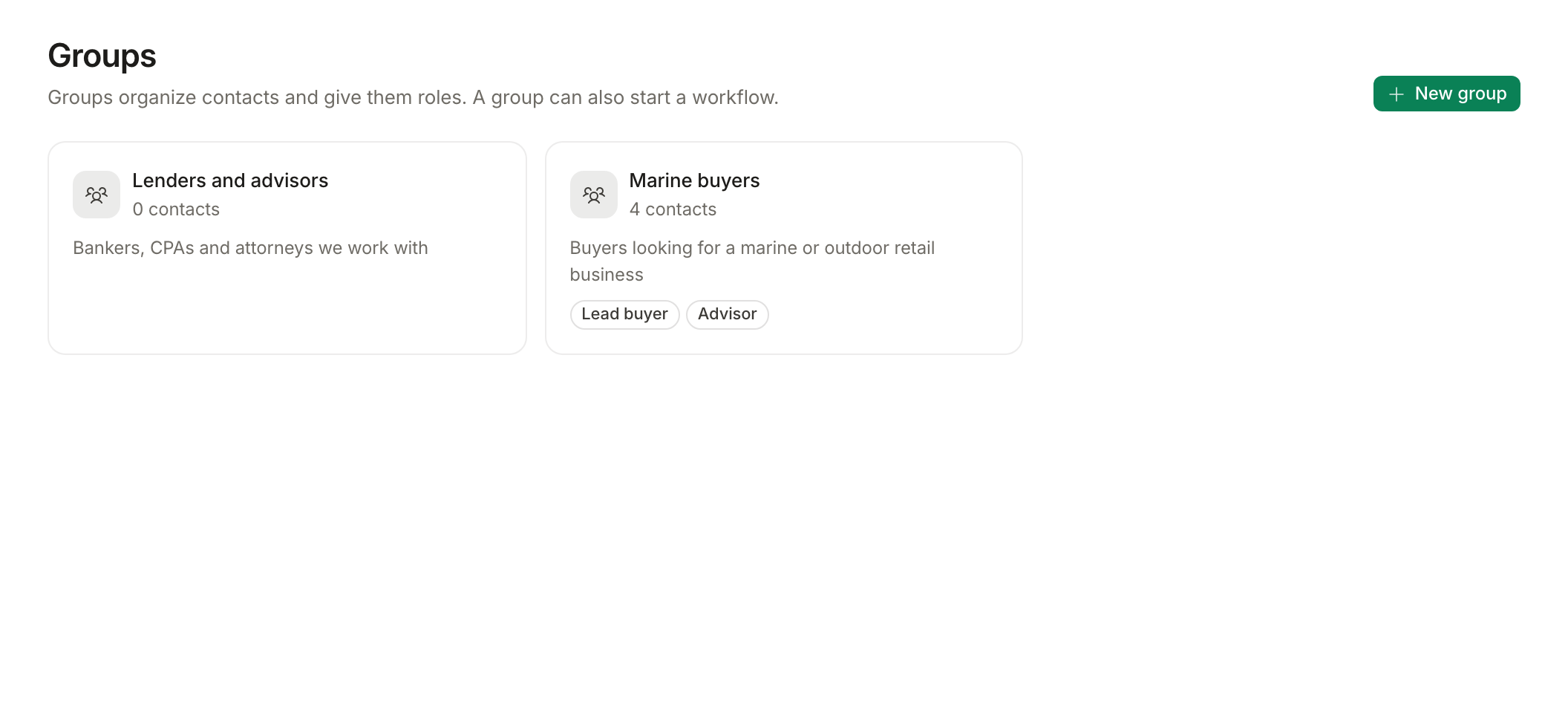
Make your groups
- Choose Groups in the sidebar.
- Choose New group.
- Enter a Name, such as Marine buyers, and a Description if it helps your team.
- Choose Create group.
Repeat this for each group your spreadsheet mentions. The names in the file must match the names here.
Prepare the file
- Put one person on each row.
- In the groups column, separate several groups with semicolons.
- In the tags column, separate several tags with semicolons too.
- In the company column, a name matches a company you already have, or creates one. Without a company value, the domain of a work email can match an existing company.
A row whose email matches a contact you already have updates that contact, so importing the same file twice does not create duplicates.
Import the file
- Choose All contacts in the sidebar.
- Choose Import at the top of the page.
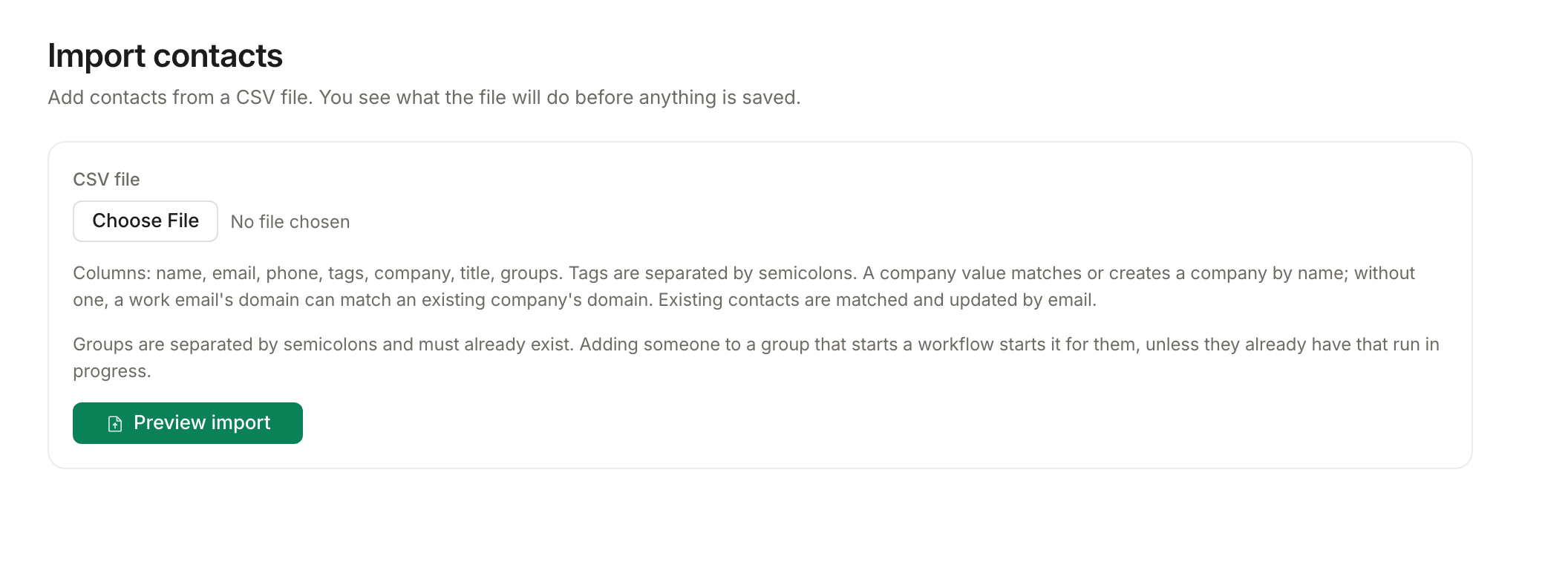
- Under CSV file, choose your file.
- Choose Preview import.
- Read the table. Each row shows the name, email, company and groups it found, and a Result of create, update or skipped. Nothing is saved yet.
- When the preview looks right, choose the button that begins with Import and gives the number of contacts, such as "Import 42 contacts". Choose Choose another file to start again instead.
When the import finishes, the page shows how many contacts were created, updated and skipped. Choose Back to contacts to see them.
Careful: A group can start a workflow. Adding someone to such a group starts that workflow for them, unless they already have that run in progress. The preview shows the number under Runs to start, so check it before you confirm.
Sort people by hand
You can also add one person at a time.
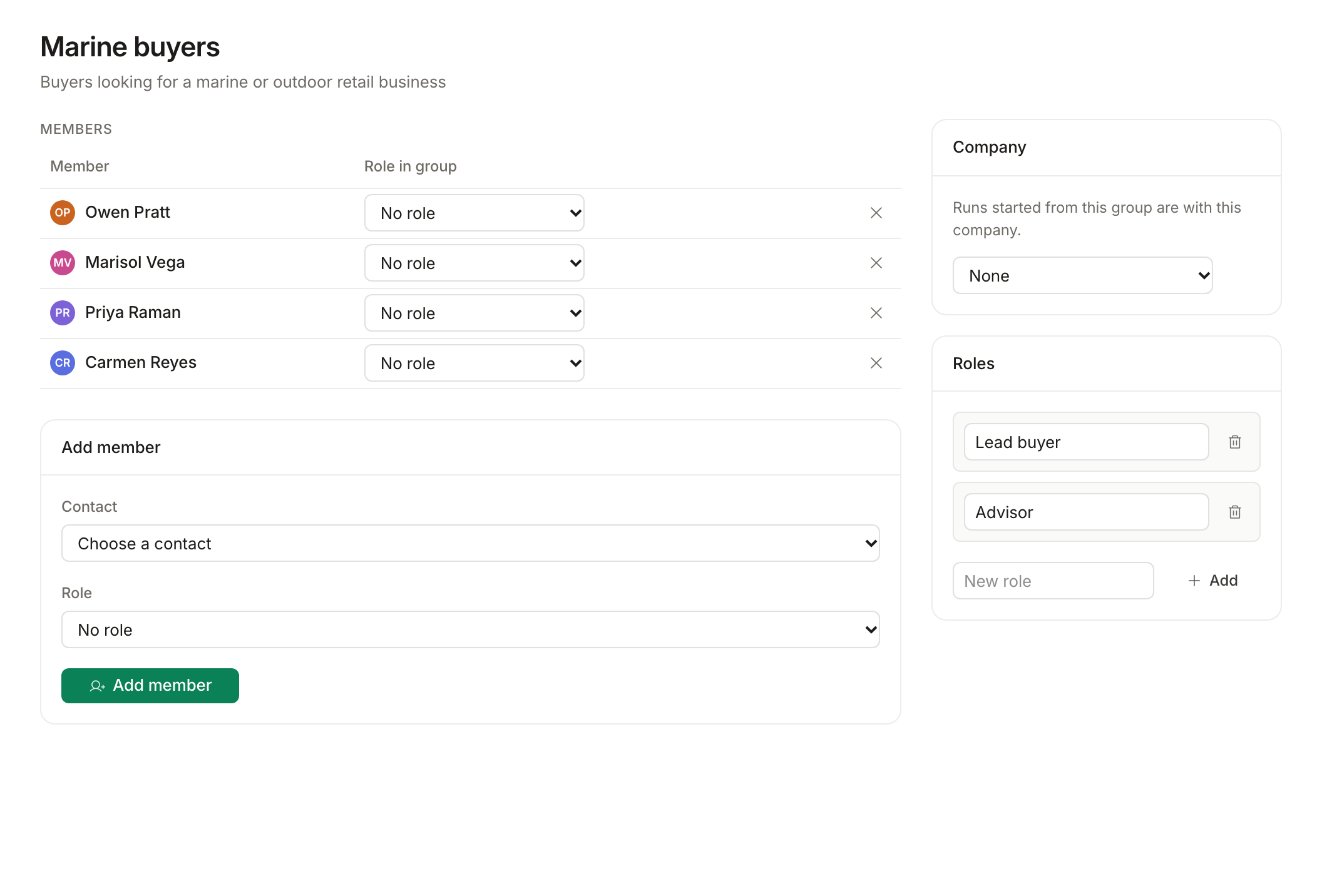
- Choose Groups and open a group.
- Under Add member, pick the Contact and, if the group uses them, a Role.
- Choose Add member.
To take someone out, choose Remove on their row under Members. On the Contacts page, the Group filter narrows the list to one group once your contacts belong to any.
Related
- PreviousWork beside the tools you already have
- NextShare files in the Data room and see who opened them