- Knowledge Center
- What your people see
What a buyer sees when they sign an NDA
Follow the buyer's side of signing, from the email to the completed copy, so you can answer their questions.
On this page
When a buyer calls to ask what they are supposed to do, it helps to have seen their side. This article walks through what a buyer of Lakeside Marine Supply sees when the sample firm Harlow & Pike asks them to sign an NDA, in the order they see it.
The email and the link
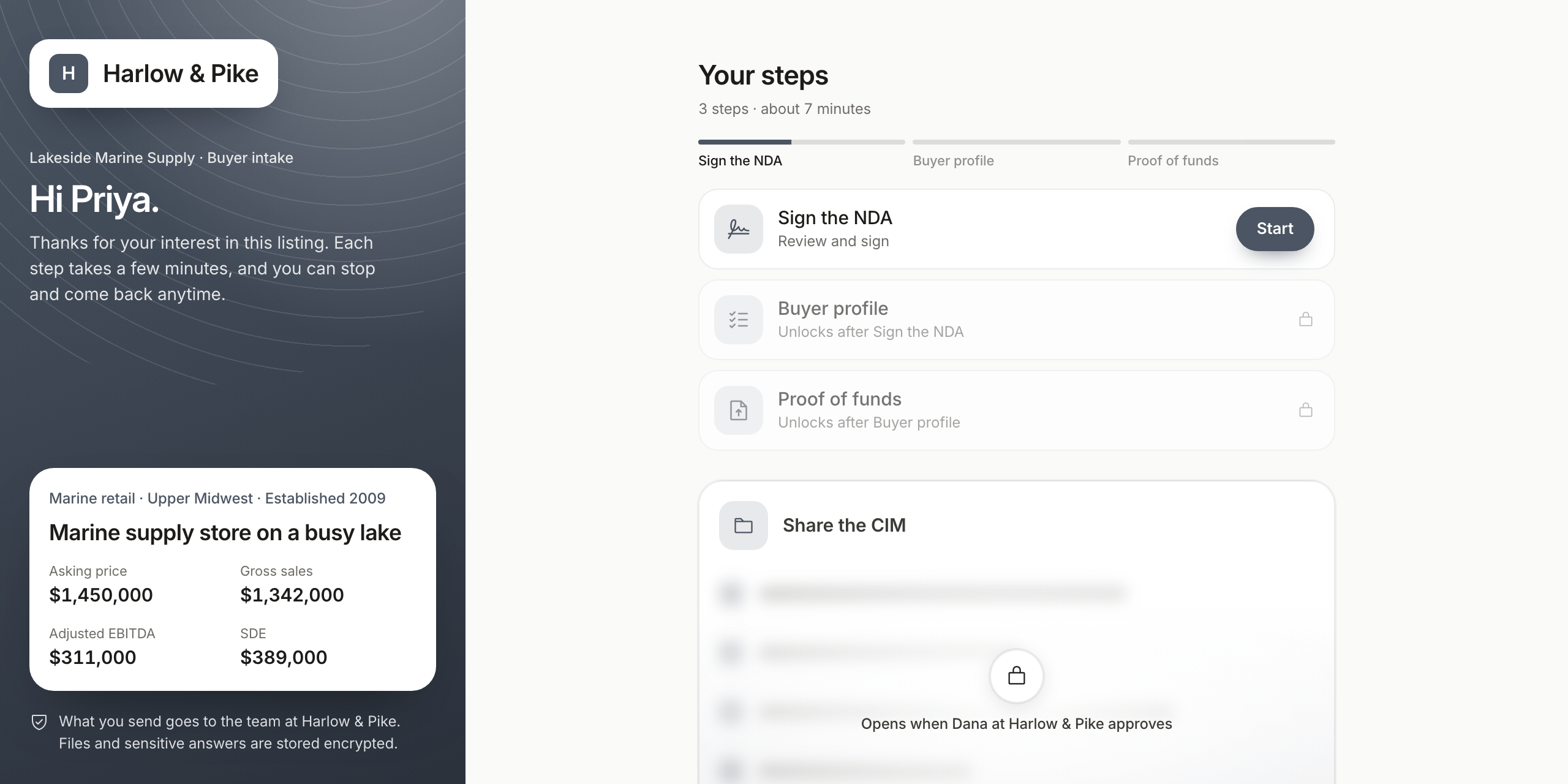
The buyer receives an email from your firm, under your portal name, with a link. The link is theirs alone, and they do not need a password or an account. Opening it shows your logo and color and a list titled Your steps, with your welcome message above it the first time.
If the buyer started on your website instead, they see the NDA on the page they started on. They enter their name and email there, sign, and then confirm their address with a six-digit code that is emailed to them.
The opening card
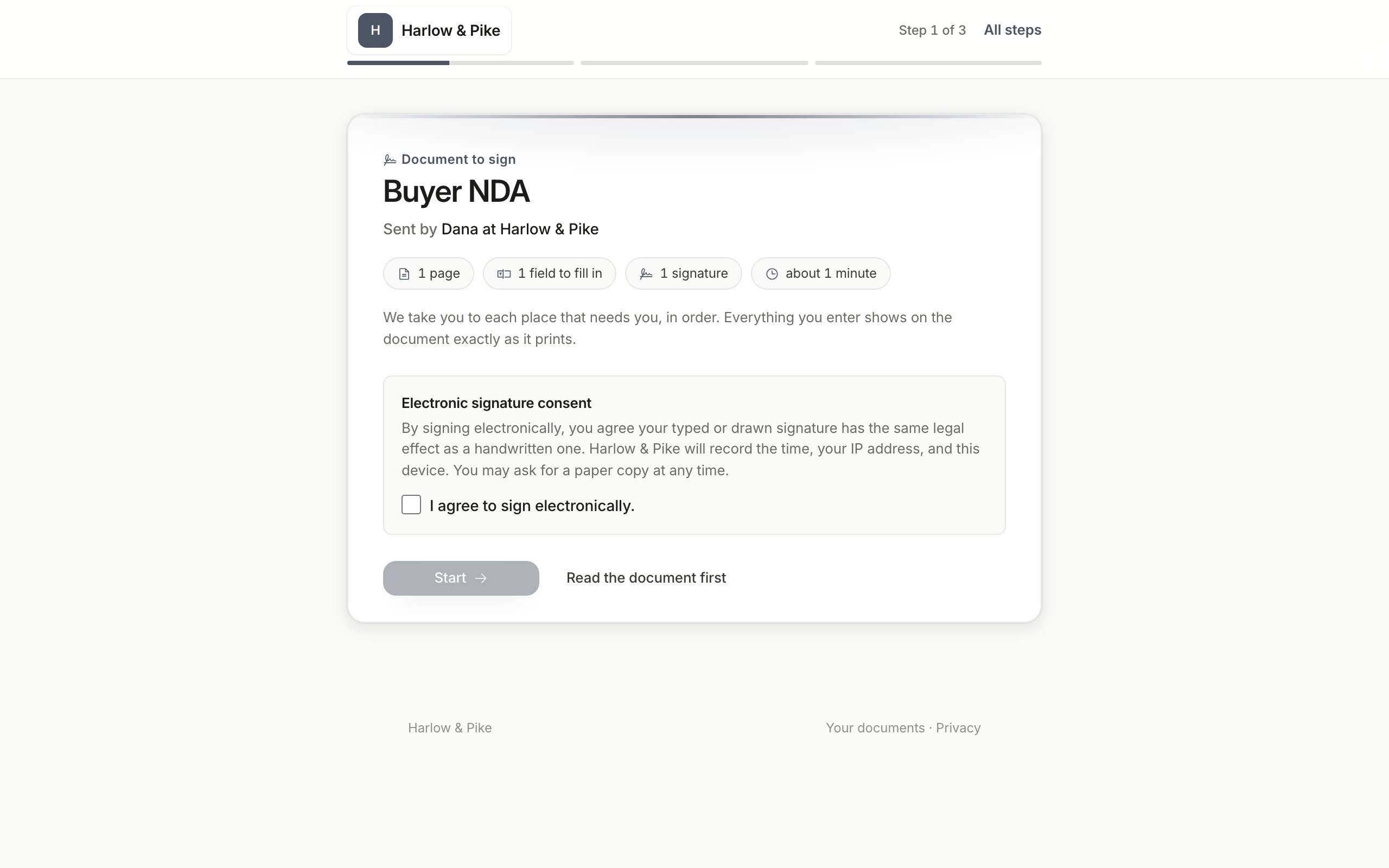
Choosing the NDA step opens a card before the document itself.
- It names the document and says who sent it.
- It lists what signing takes, such as the number of fields to fill in, places to initial and signatures, with a rough time.
- It shows the Electronic signature consent. The consent explains that a typed or drawn signature has the same legal effect as a handwritten one, that your firm records the time, their IP address and their device, and that they may ask for a paper copy.
The buyer ticks I agree to sign electronically and chooses Start. A buyer who would like to read first can choose Read the document first. Nothing can be signed until they agree.
Filling in and signing
The page takes the buyer to each place that needs them, in order, and a bar counts how many required fields are done.
- Fields that the buyer has already answered, for example in a form earlier in the workflow, arrive filled in and highlighted. The buyer can correct them.
- At the first signature field, the buyer adopts a signature. They choose Type and pick a style, or choose Draw and sign with a mouse, pen or finger, and then choose Use this signature.
- They place the signature by pressing each signature field. Initials work the same way.
- When every required field is done, the bar's button reads Finish signing, and the buyer chooses it.
A buyer who is interrupted can choose Finish later from the bar's menu and come back through the same link.
After signing
The buyer sees a screen headed Signed, with the document's name and a reference. If more than one person signs, the screen lists the signers and says who signs next.
The completed copy arrives by email once everyone has signed, when the sign step is set to email it, and it appears under Files on the run for your team. Every signed copy ends with a certificate that records who signed and when. The same screen gives an address where anyone holding the document can check that their copy is unchanged.
Later, the Your documents link at the foot of the buyer's pages lists what they have signed, sent and been given under that link.
If the buyer's link has stopped working
A buyer who opens an expired link sees a short message and a Send me a new link button, which emails a new link to the address you have for them. You can also send one from the run. See Send a reminder or a fresh link.